
Hold a vehicle for your customer: choose the customer, enter the downpayment, upload the receipt and confirm.
Before you start, have at hand:
The customer: you can pick them from your list or add them right there.
The downpayment amount.
The payment receipt: an image or a PDF of up to 5 MB.
1. Find the vehicle
Sign in to Centrio with your email and password.
In the sidebar, under Sell, click Inventory (1).
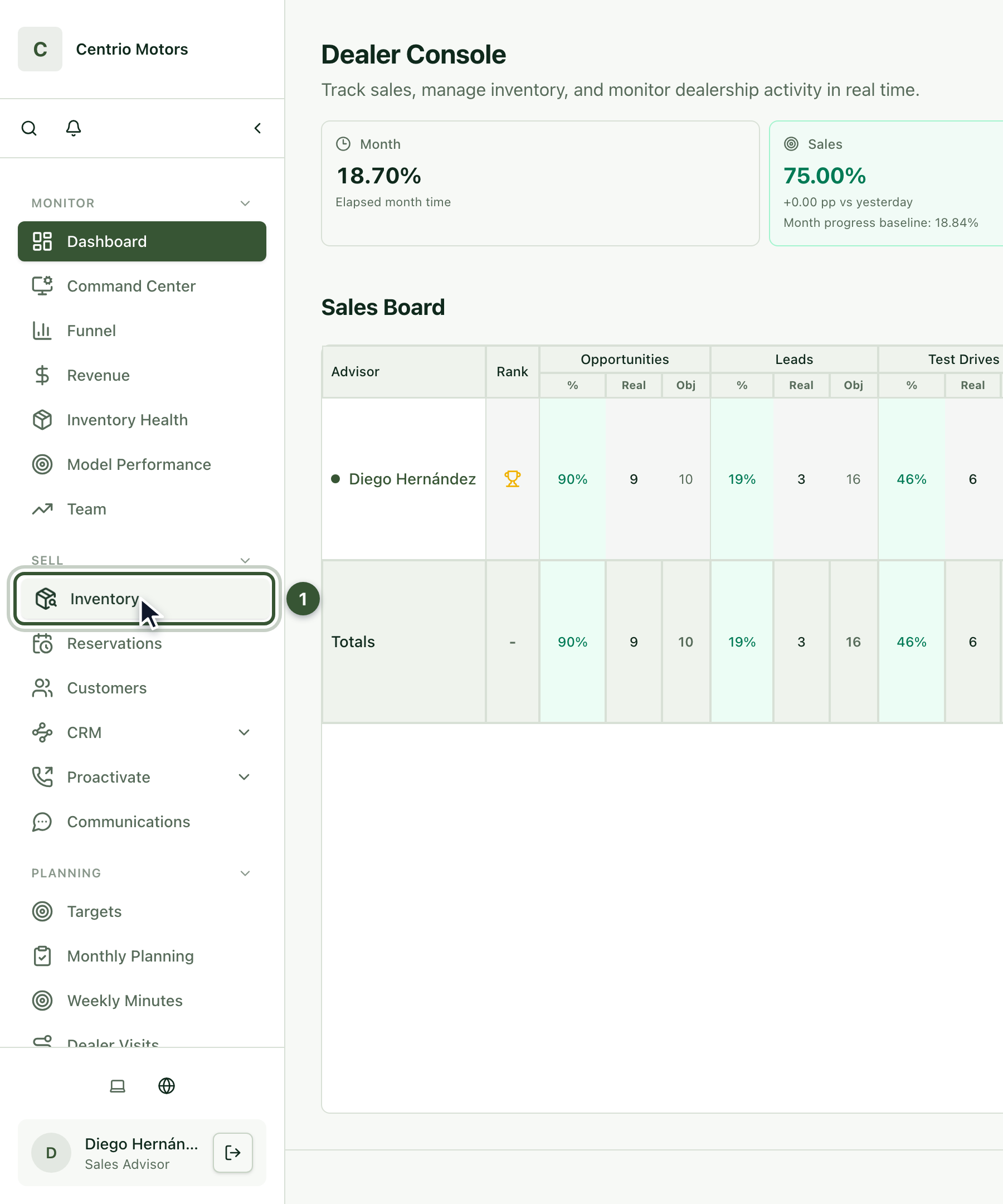
Find the vehicle by its stock number. Type, for example, SF-0008, press Apply and open its details.
2. Click Reserve vehicle
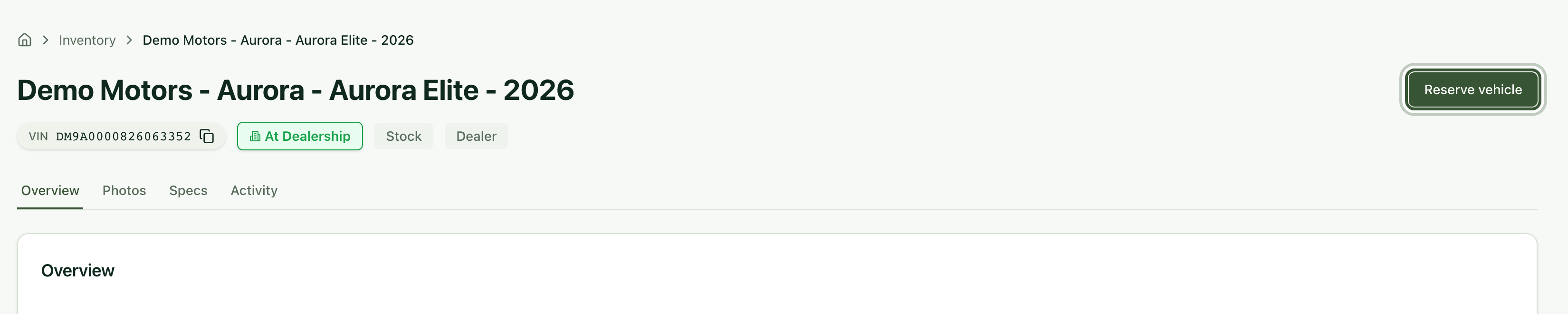
On the vehicle page, click Reserve vehicle.
3. Choose the customer
Choose Existing customer and search by name, email or phone; here we look for Frida Herrera (1). If they aren't registered yet, use New customer and enter their details right there.
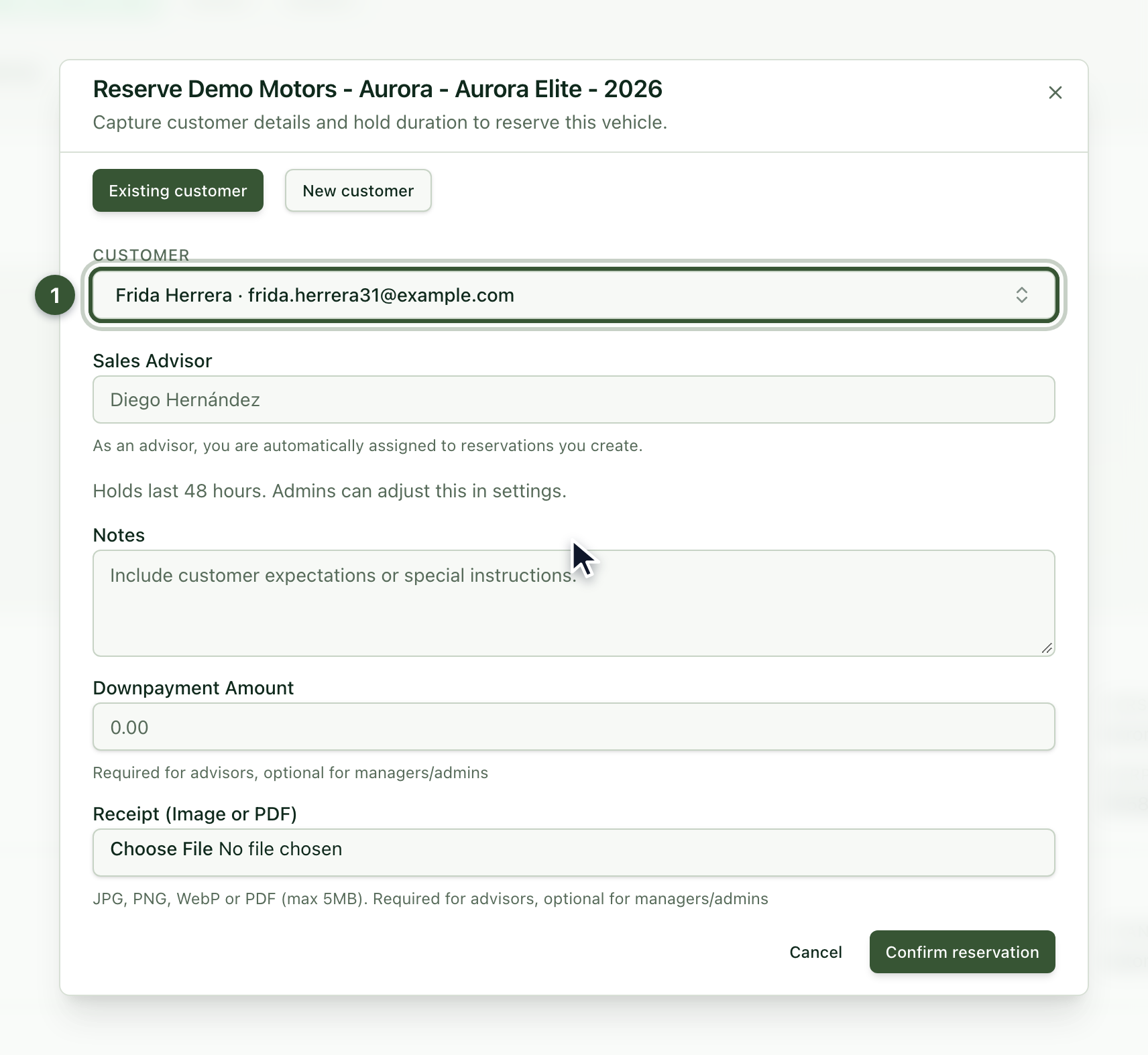
The Sales Advisor is assigned automatically: it's you.
4. Enter the downpayment and upload the receipt
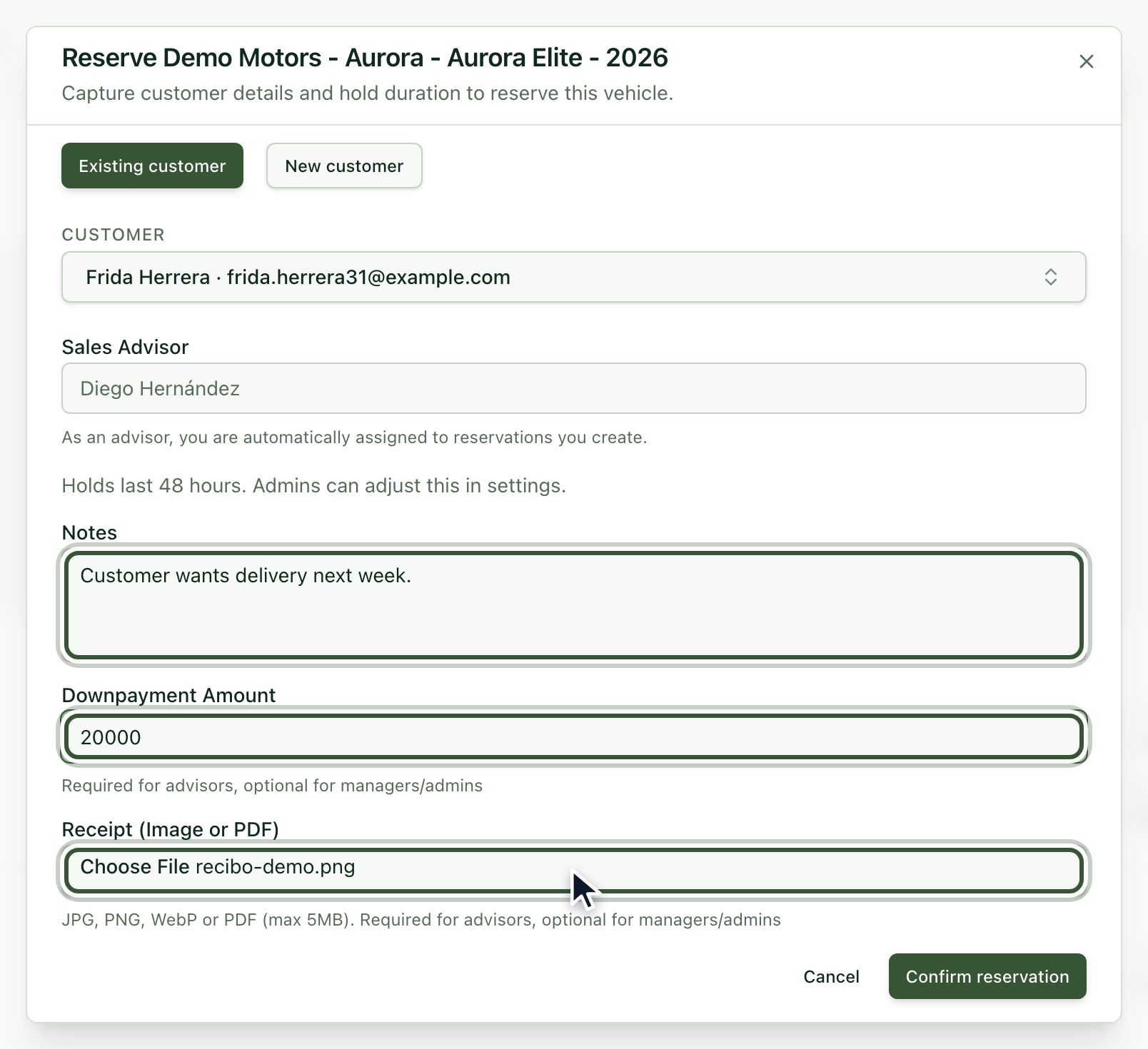
If you need to, add a note in Notes.
Enter the downpayment in Downpayment Amount.
Upload your payment receipt in Receipt (Image or PDF). It accepts JPG, PNG, WebP or PDF up to 5 MB.
5. Confirm the reservation
Click Confirm reservation. The vehicle is held for your customer for the time your dealership sets; by default, 48 hours.
6. Check your reservation
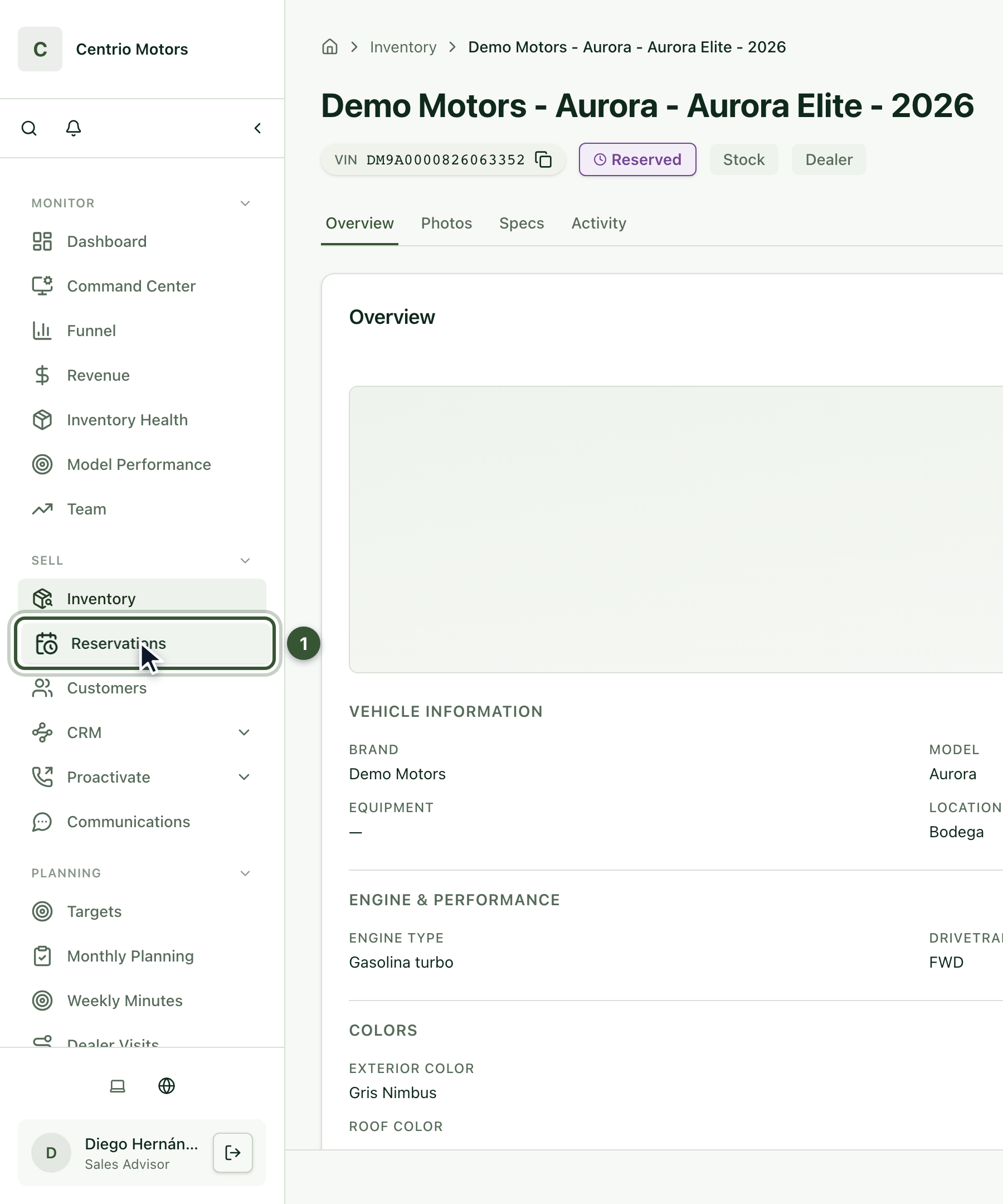
To see it, open Reservations (1) in the sidebar. Your reservation appears in the list with its status.
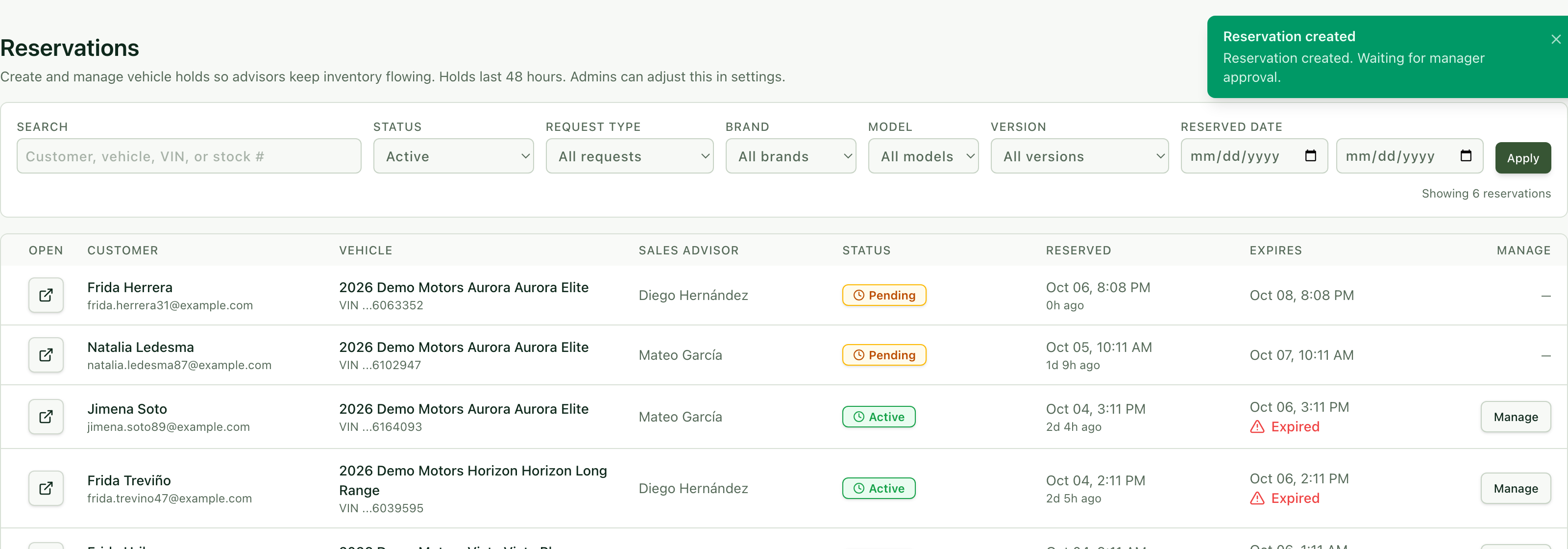
When you create it, the reservation is Pending: it waits for your manager's approval. Once approved, it becomes Active and you'll see how much time it has left.
Frequently asked questions
I can't reserve a vehicle. Only vehicles in production, in transit or at the dealership can be reserved. A vehicle that is already Reserved can't be reserved again.
The system asks for a downpayment and a receipt. They are required for advisors and optional for managers and admins.
How long does a reservation last? 48 hours by default. Admins can adjust this in the settings.
My reservation is Pending. What do I do? That's normal when you create one: wait for your manager's approval.
To register a new customer before reserving, see the article How to register a customer.