
The Dealer Console is the first thing you see when you sign in to Centrio. At a glance it tells you how you are doing against your monthly target.
1. Open the Console
Sign in to Centrio with your email and password. You'll land on the Dealer Console.
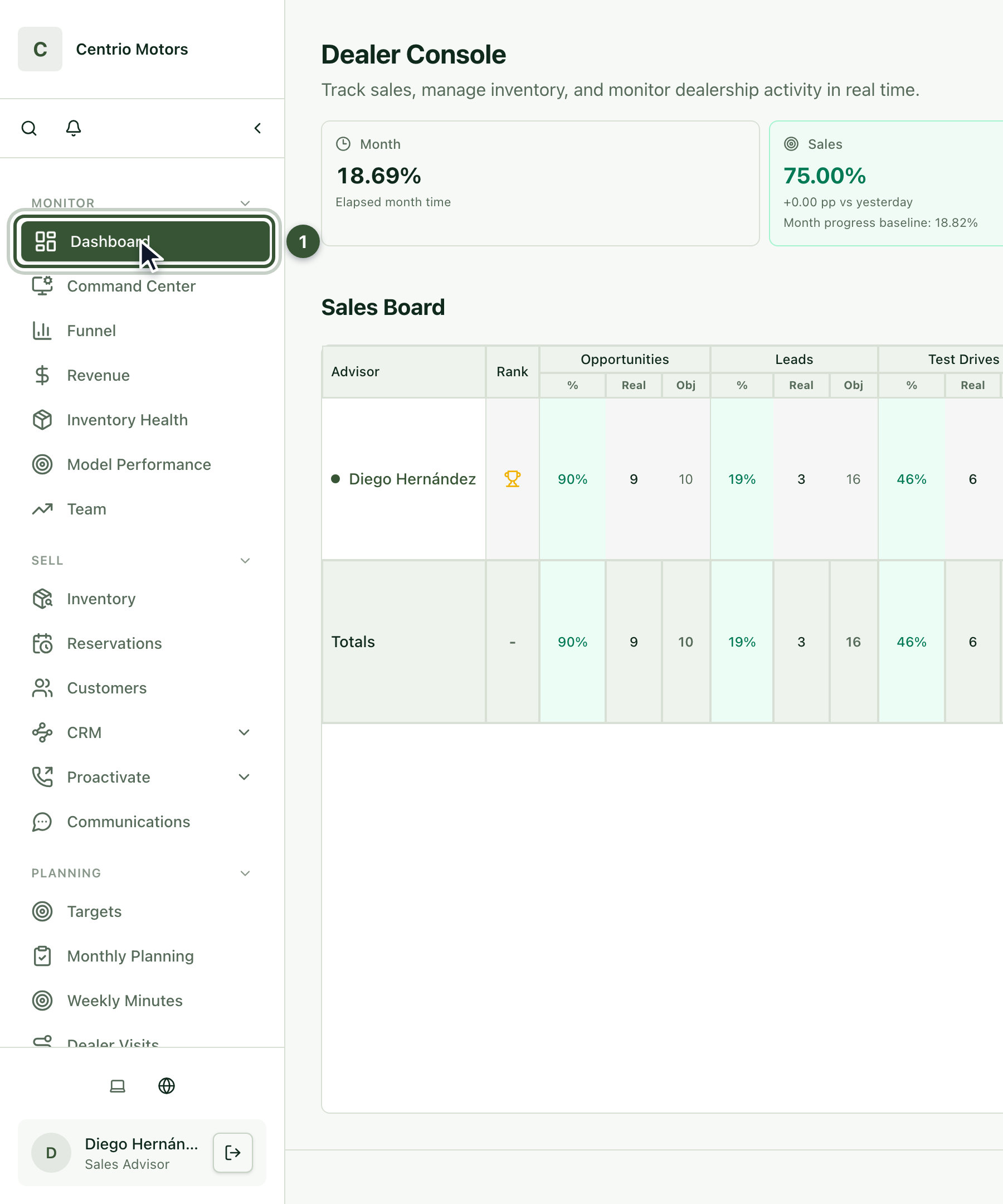
You can always come back to it with Dashboard (1), in the sidebar.
2. Read your progress cards
At the top are your progress cards:
Month (1): how much of the month has gone by.
Sales and Opps (2): the percentage of your target you have reached in sales and in opportunities.
Active Res.: how many current reservations you have and how much they add up to in the pipeline.

Compare your percentage with the month's baseline, shown on each card. If you match or beat it, the card shows green; if you fall behind, it changes color to warn you.
3. Check the Sales Board
Further down is the Sales Board. As an advisor you see your own row and the totals. Each group of columns (1) is one indicator: Opportunities, Leads, Test Drives, Reservations and Sales.
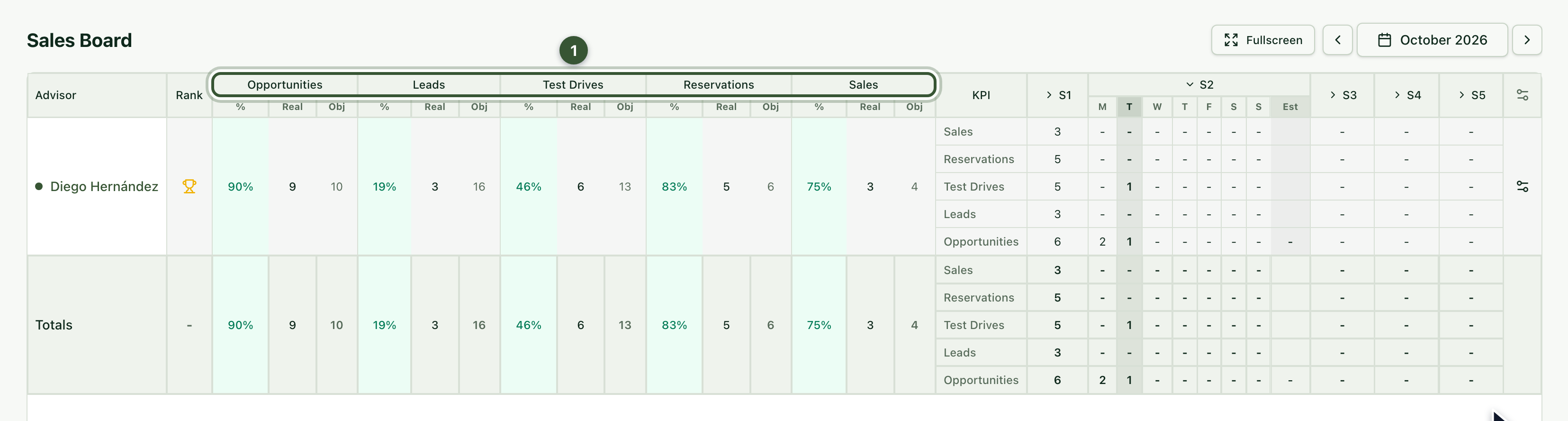
For each indicator you see three figures:
%: the percentage of your target.
Actual: what you have so far.
Goal: the goal for the month.
The background color tells you how you are doing: green, on pace; yellow, close; red, behind.
4. Review the weekly and daily detail
To the right of the board you have the weekly detail (S1, S2…). Click a week (1) to open its days and see what you did on each one.
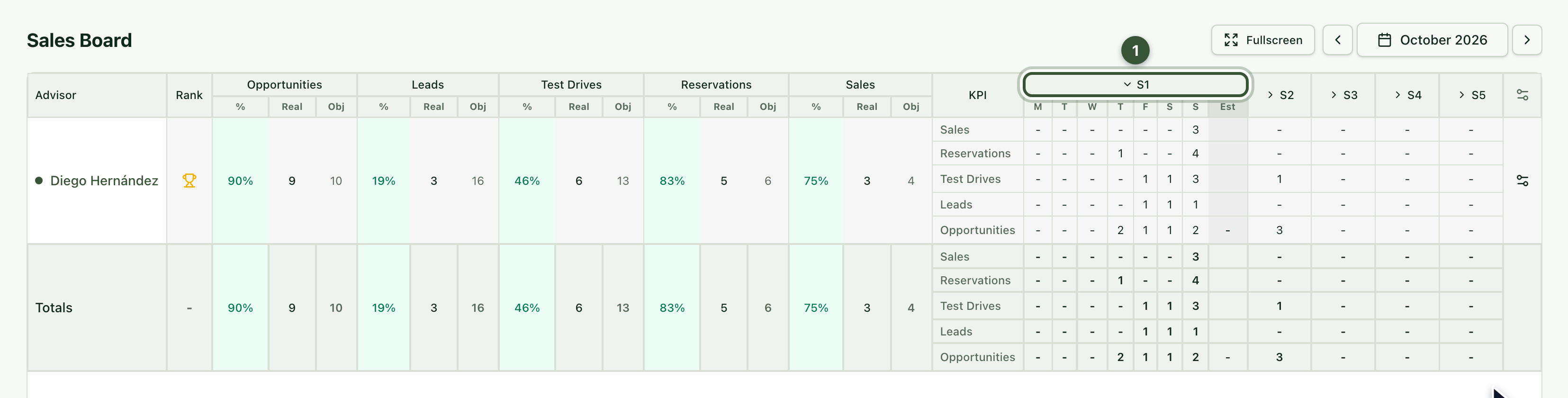
With the arrows and the month selector (for example October 2026) you can review other months. With Fullscreen you can show the board to the whole team.
Frequently asked questions
Why does a card or a cell change color? Because your progress is below the month's baseline. Green means you are on pace.
Why do I only see my own row? As an advisor, the board shows your own progress and the totals.
How often should I check it? Ideally every day: it tells you which indicator needs a push to reach your target.
To find a vehicle for your customer, see the article How to find a vehicle in the inventory.