Update a team member's details and permissions, or remove their access when they leave the dealership.
Before you start
You need a role with user management permission, for example General Manager, Sales Manager or Admin.
You can only create or edit users whose role is below yours.
Sign in to Centrio with your email and password. You'll land on the Dealer Console.
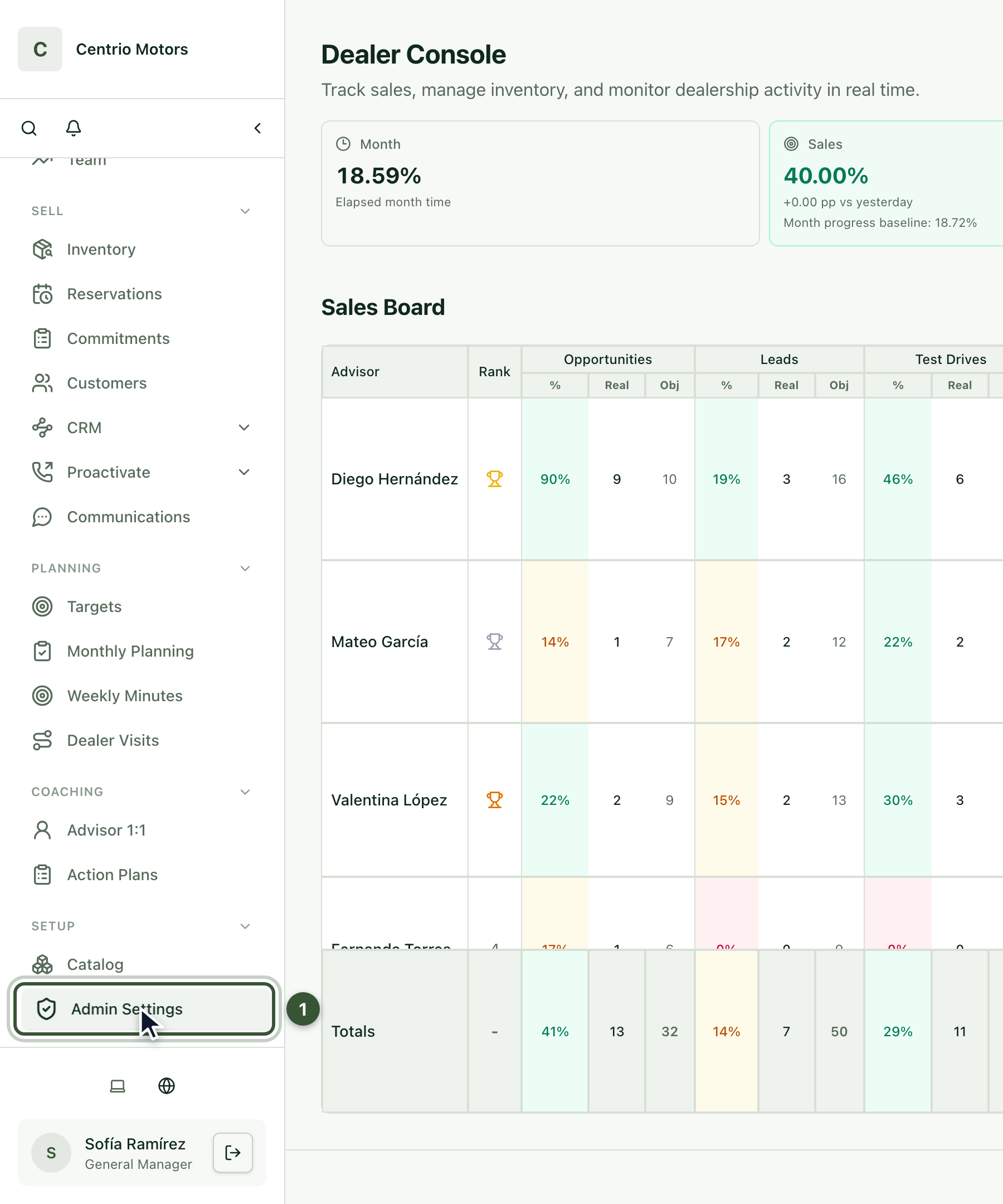
In the sidebar, under Setup, click Admin Settings (1).
Open the User Management tab (2).
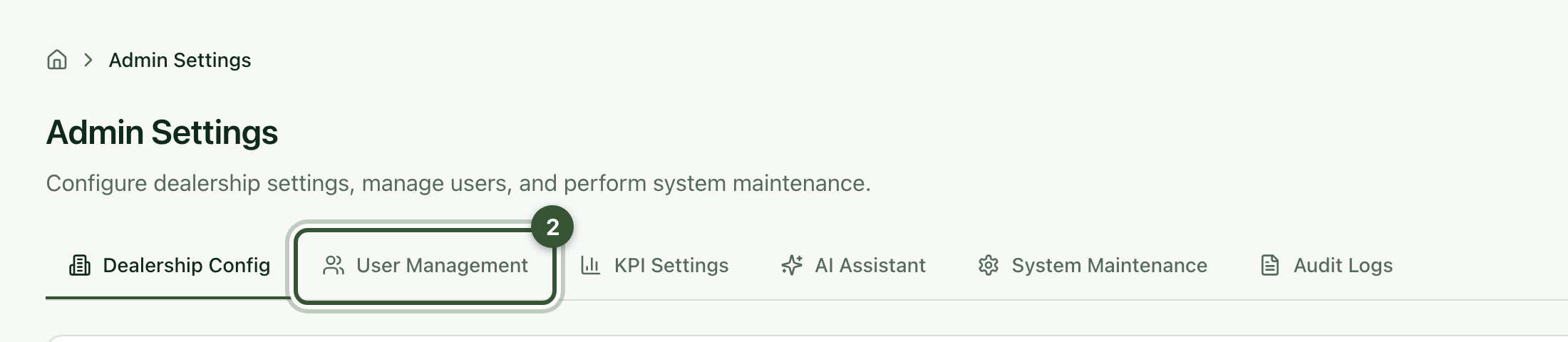
Managing several dealerships? Pick one in the sidebar's dealership selector to see Admin Settings. With All dealerships selected, go to Setup › Users instead.
Type their name in Search to find them quickly.
On their row, open the ⋮ menu in the Actions column and choose Edit User.

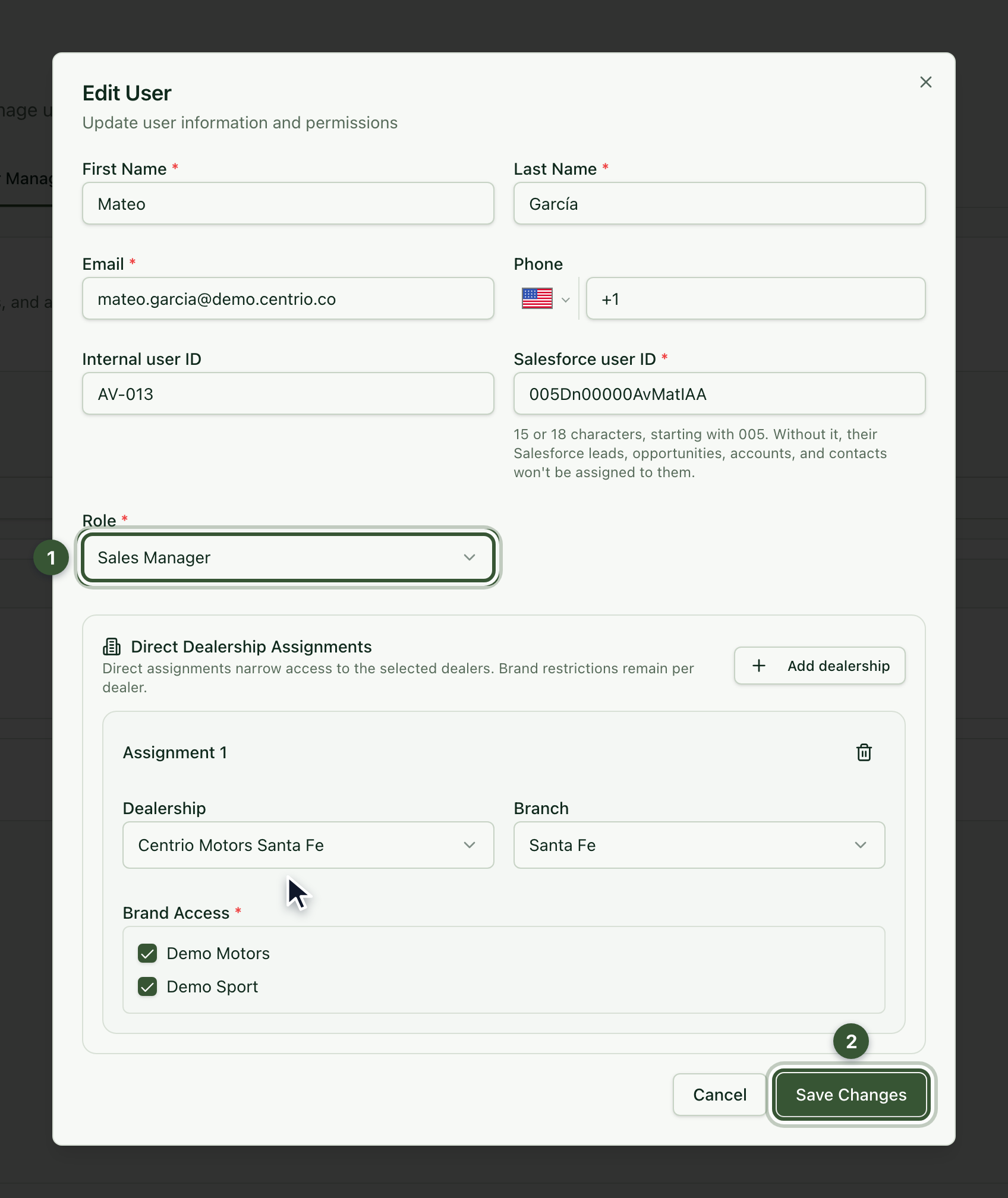
Change what you need: name, email, phone, Salesforce user ID, role (1), dealership, branch or brands.
Click Save Changes (2).
If you change their email, they must sign in with the new email from then on.
If your brand uses Salesforce, check that their Salesforce user ID is exactly the same as in Salesforce. It's mandatory: without it, their synced leads and opportunities aren't assigned to them.
Can't see the Actions column? On small screens, scroll the table to the right.

Edit User: change their details, role, dealership, branch or brands.
Send Invitation: sends the invitation email again, for example if it never arrived.
Deactivate: removes their access immediately. Their history is kept and you can restore access with Activate.
Delete User: removes them from your team. This can't be undone, and it isn't available if the user has reservations or sales on record.
We recommend deactivating them instead of deleting them: they lose access immediately, but their history (sales, reservations and activities) is kept and you can reactivate them anytime.
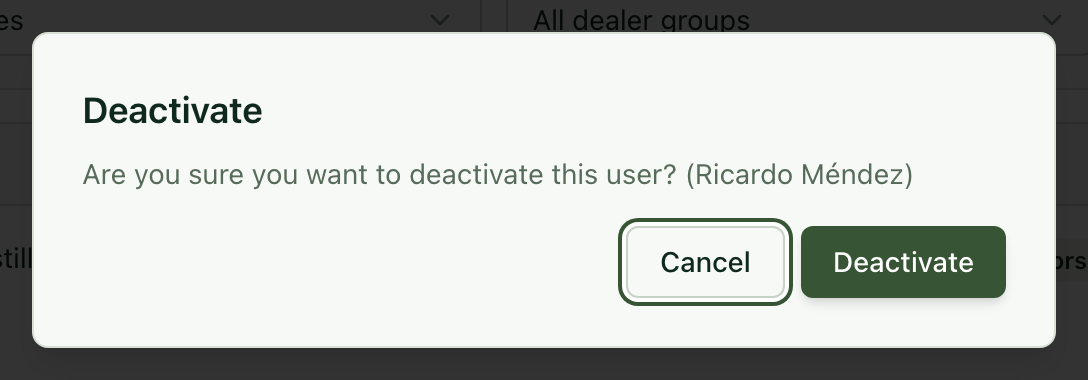
Find them, open the ⋮ menu on their row and choose Deactivate.
Confirm with Deactivate.
Their status changes to Inactive. To give their access back, open the ⋮ menu and choose Activate.

I can't edit a person or assign a certain role. You can only edit users and assign roles below your own.
The actions don't appear on my own user. For security, you can't deactivate or delete your own account from here.
It won't let me delete a user. Users with reservations or sales on record can't be deleted. Deactivate them to remove their access without losing their history.
An advisor doesn't see their Salesforce leads or opportunities. Use Edit User to check that their Salesforce user ID is exactly the same as in Salesforce.
The user didn't receive the invitation. Check the email address is correct (fix it with Edit User), ask them to look in their spam folder, and use Send Invitation.
To add a new person, see the article How to create a user in Centrio.
