Follow these steps to add a new team member to Centrio and send them their invitation.
Before you start
You need a role with user management permission, for example General Manager, Sales Manager or Admin.
You can only create or edit users whose role is below yours.
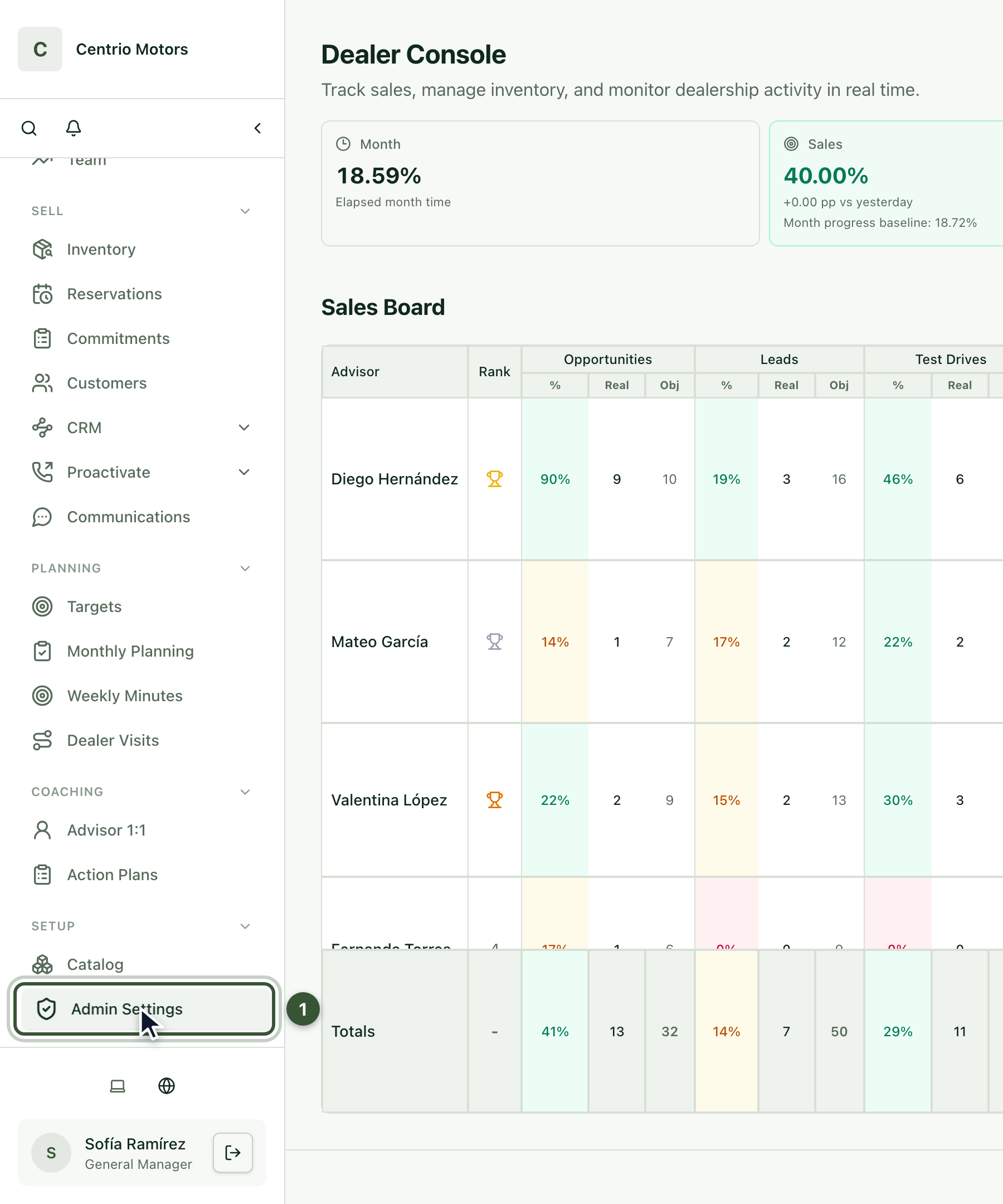
Sign in to Centrio with your email and password. You'll land on the Dealer Console.
In the sidebar, under Setup, click Admin Settings (1).
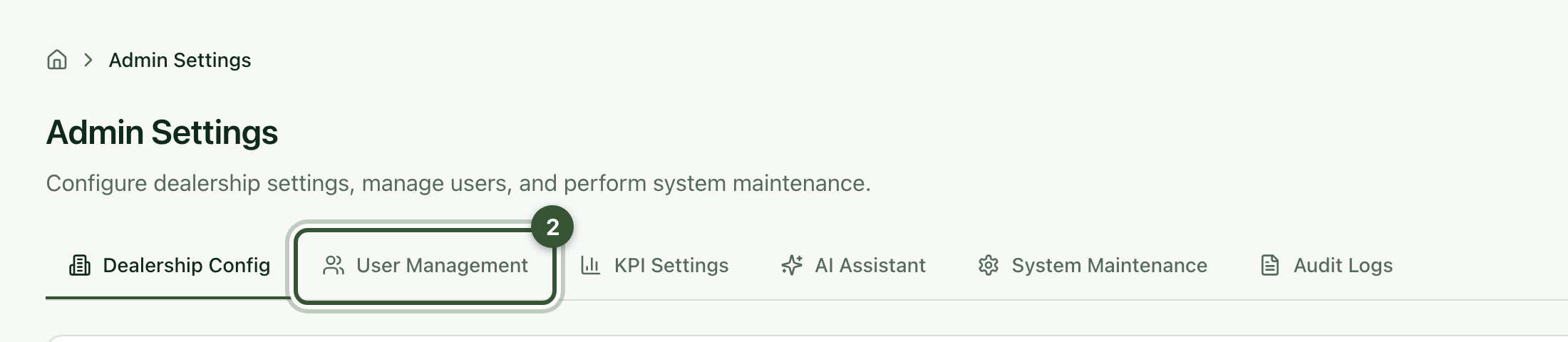
Open the User Management tab (2).
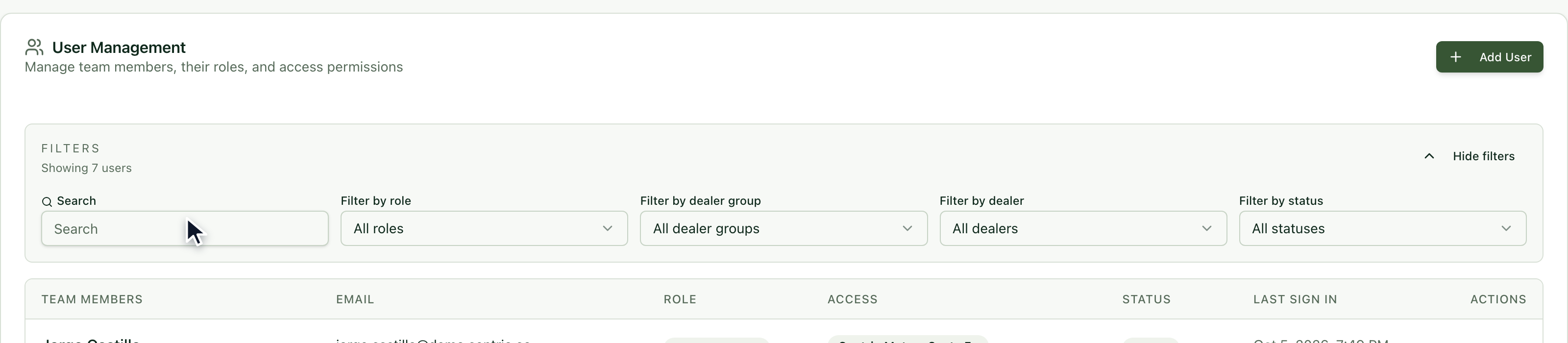
Here you see your whole team: their role, the dealership they can access, their status and their last sign-in. Use the filters to search by name or filter by role and status.
Managing several dealerships? Pick one in the sidebar's dealership selector to see Admin Settings. With All dealerships selected, go to Setup › Users instead.
Click Add User.
Enter their First Name, Last Name and Email (1). That email is the username they'll use to sign in to Centrio.
Optionally add their Phone and Internal user ID. They help you identify each person.
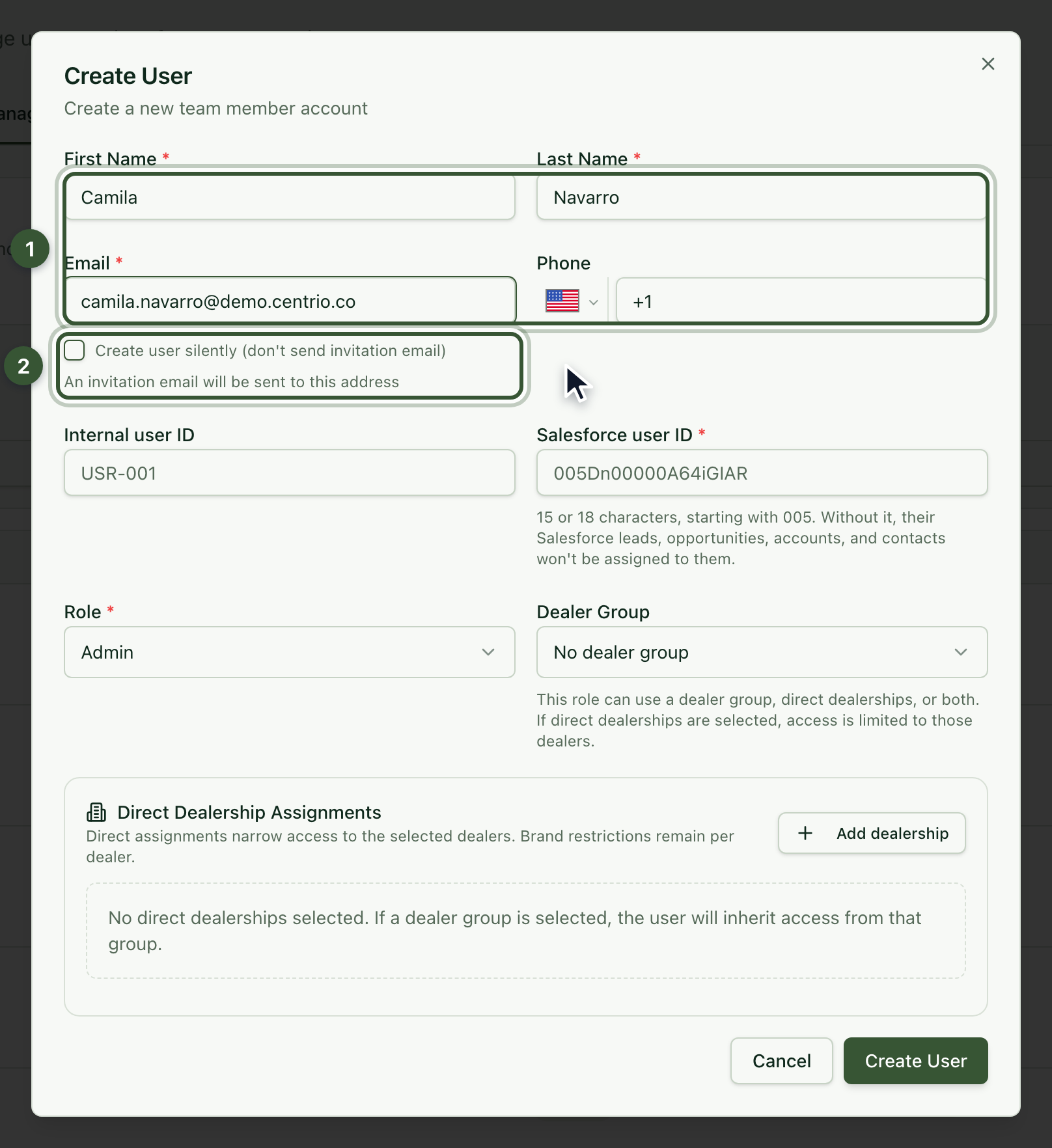
Email invitation (2): when you create the user, Centrio sends them an invitation email to activate their account. If you'd rather not send it yet, check Create user silently: Centrio generates a temporary password that you must share securely, and they'll have to change it the first time they sign in. You can send the invitation later.
If your brand uses Salesforce, you'll see the Salesforce user ID field marked with a red asterisk: it's mandatory.

Mandatory if your brand uses Salesforce: enter exactly the same ID the person has in Salesforce. Centrio uses this ID to match the user across both platforms and assign them the leads, opportunities, accounts and contacts synced from Salesforce. If it's empty or wrong, those records won't be assigned to them.
It's a 15- or 18-character code that starts with 005. If you don't have it, ask your brand's Salesforce administrator.
Choose their Role. For a salesperson, choose Sales Advisor.
Important: double-check the Role field before saving, because it may come preselected as Admin.
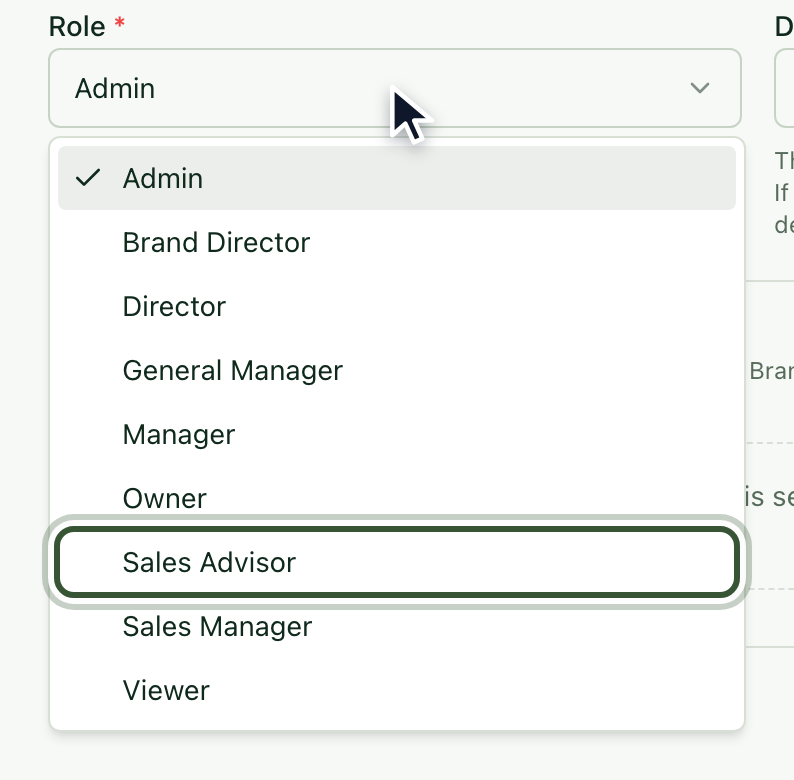
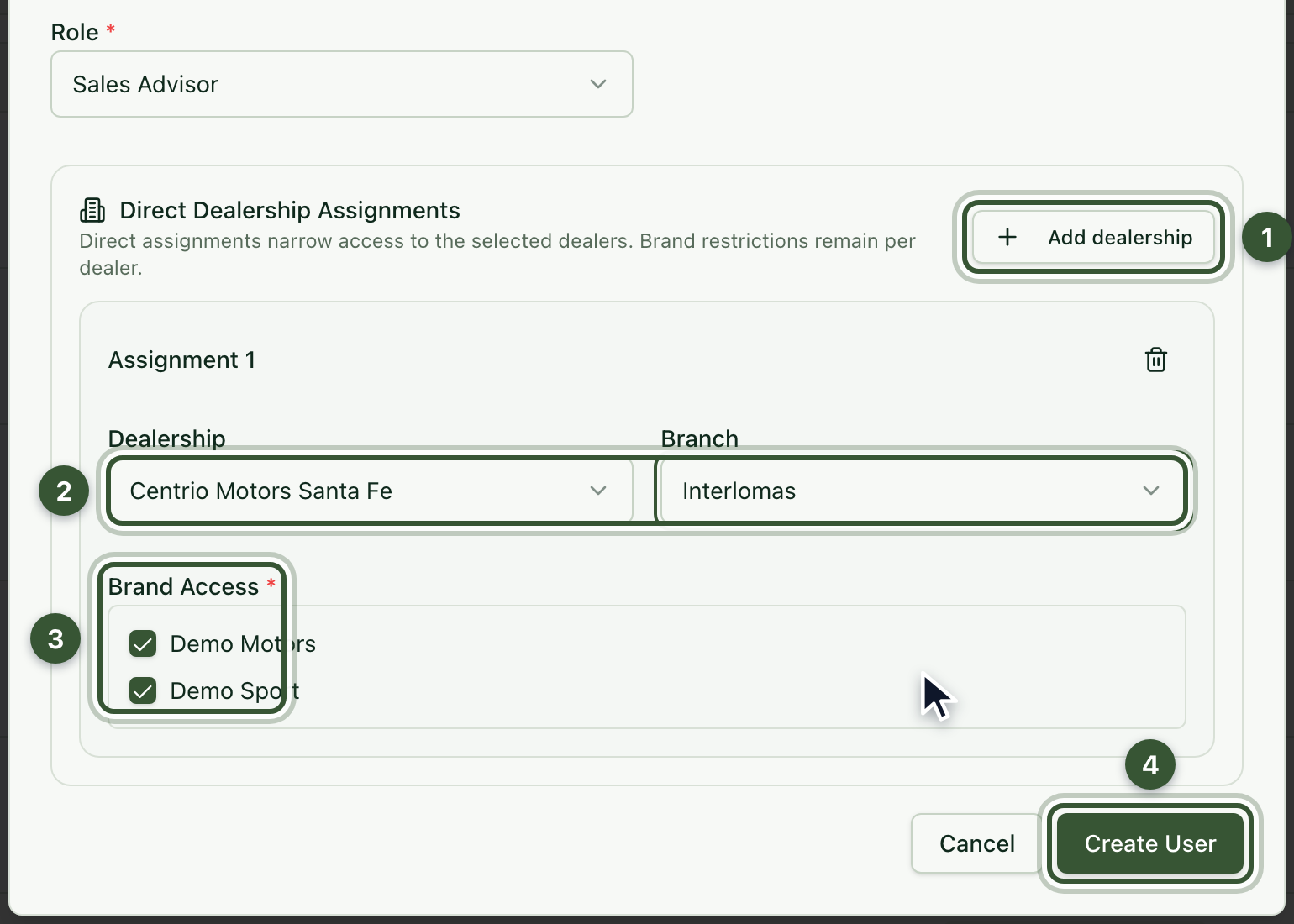
Under Direct Dealership Assignments, click Add dealership (1).
Choose the Dealership and the Branch where they'll work (2). If they work at all branches, leave All branches.
Under Brand Access (3), all of the dealership's brands are checked. Uncheck the ones they shouldn't see.
Click Create User (4).
Done! The new user appears in your team list. Under their name you'll see their internal ID and Salesforce ID (SFDC) — use it to confirm it was entered correctly.

They get an email with the subject “You're invited to join…” and your dealership's name. With the Launch console button they create their password and sign in to Centrio.
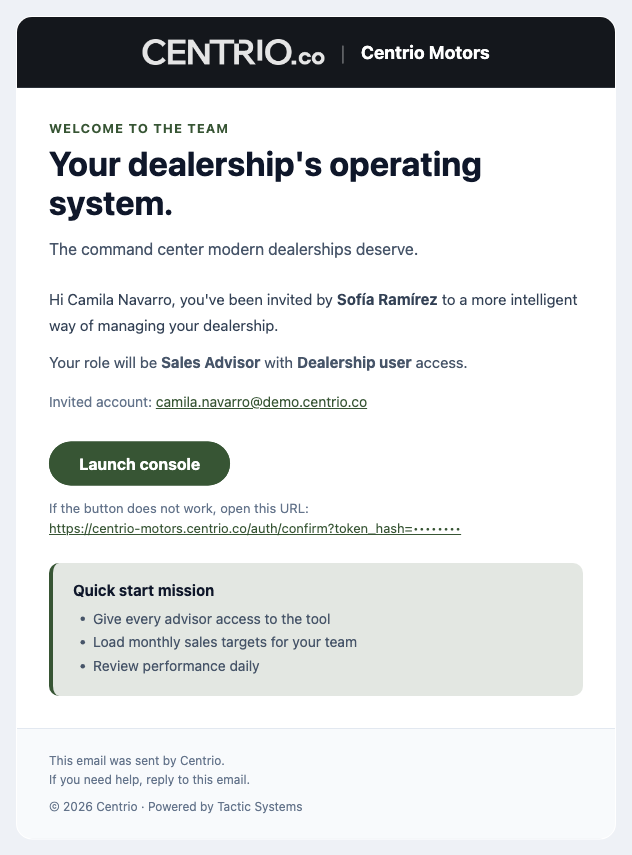
If it doesn't arrive, ask them to check their spam folder and confirm the email address is correct. Then use Send Invitation from the ⋮ menu on their row to send it again.
I don't see Admin Settings or User Management. Your role doesn't have user management permission, or All dealerships is selected. Pick a dealership in the sidebar or ask your account administrator for access.
I can't assign a certain role. You can only create users and assign roles below your own.
Where do I find the Salesforce user ID? In the user's profile in Salesforce: a 15- or 18-character code starting with 005. If you don't have access, ask your brand's Salesforce administrator.
The user didn't receive the invitation. Check the email address, ask them to look in their spam folder, and use Send Invitation.
To change a user's details or remove their access, see the article How to edit a user in Centrio.
