
Inventory Health helps you find the inventory that is sitting.
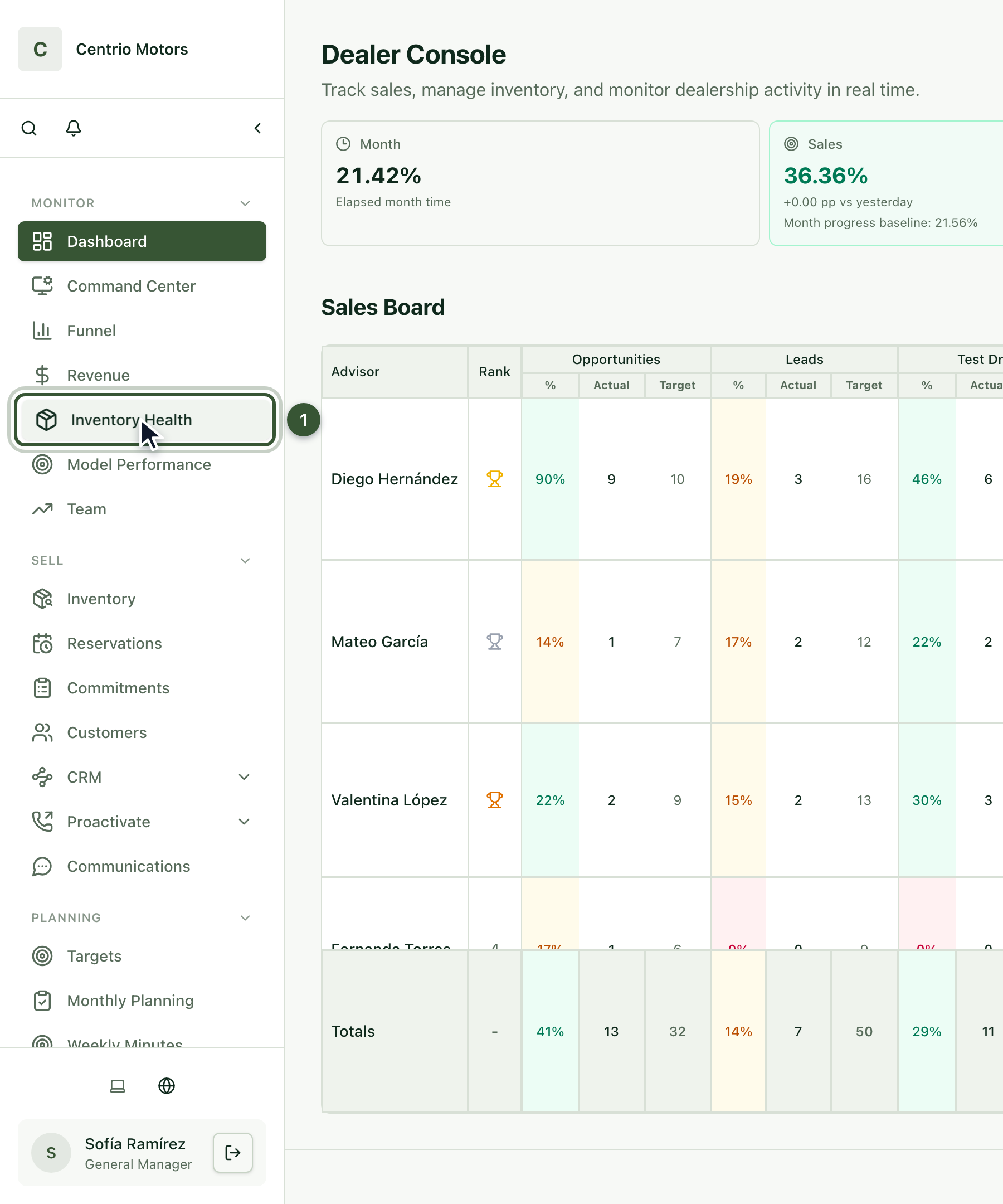
1. Open Inventory Health
In the sidebar, under Monitor, click Inventory Health (1). The Brand filter shows a single brand.
2. The cards
Avg Days on Lot: how long your sold units took to sell. The target is 45 days or fewer.
Turnover Rate: how many times a year your inventory turns over.
Aging Stock: units with more than 60 days on the lot.
Active Inventory: units on the floor or reserved.

3. The charts
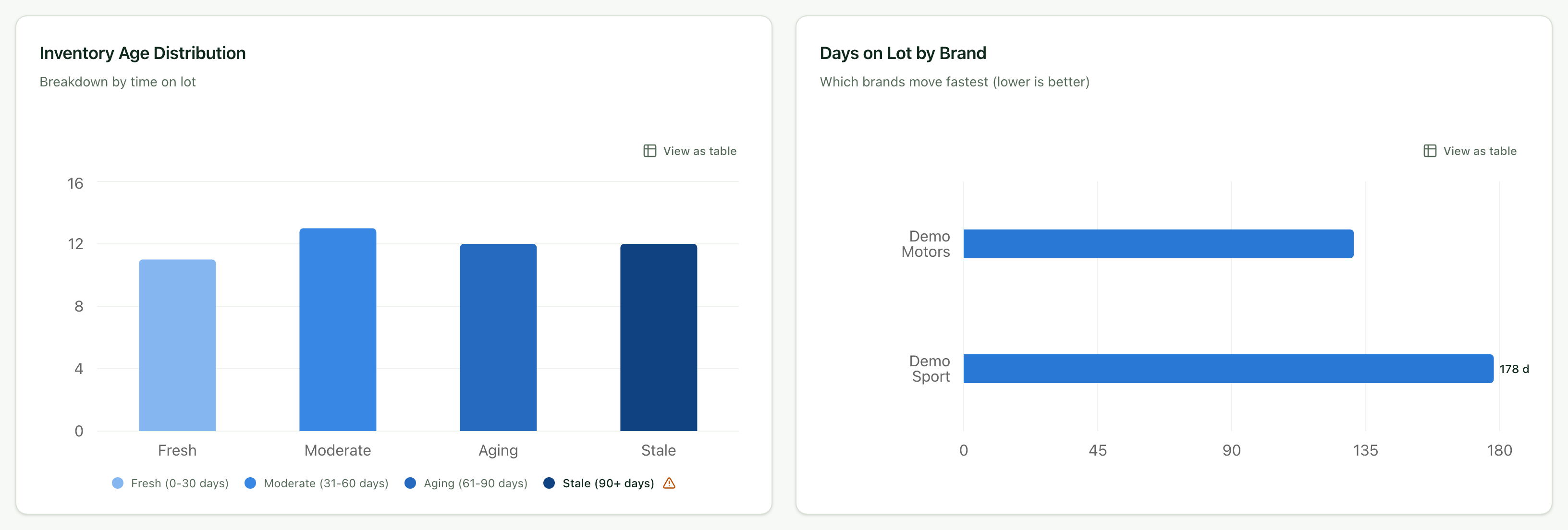
Inventory Age Distribution groups your on-lot inventory: Fresh (0–30 days), Moderate (31–60), Aging (61–90) and Stale (over 90).
Days on Lot by Brand compares which brand sells fastest: fewer days is better.
Frequently asked questions
Where do I start? Check the Stale units and Aging Stock first: they're the ones worth promoting.