
The Monthly Minutes are the record of each month's planning meeting. Centrio prepares them with last month's numbers and your advisors' targets.
1. Create the month's minutes
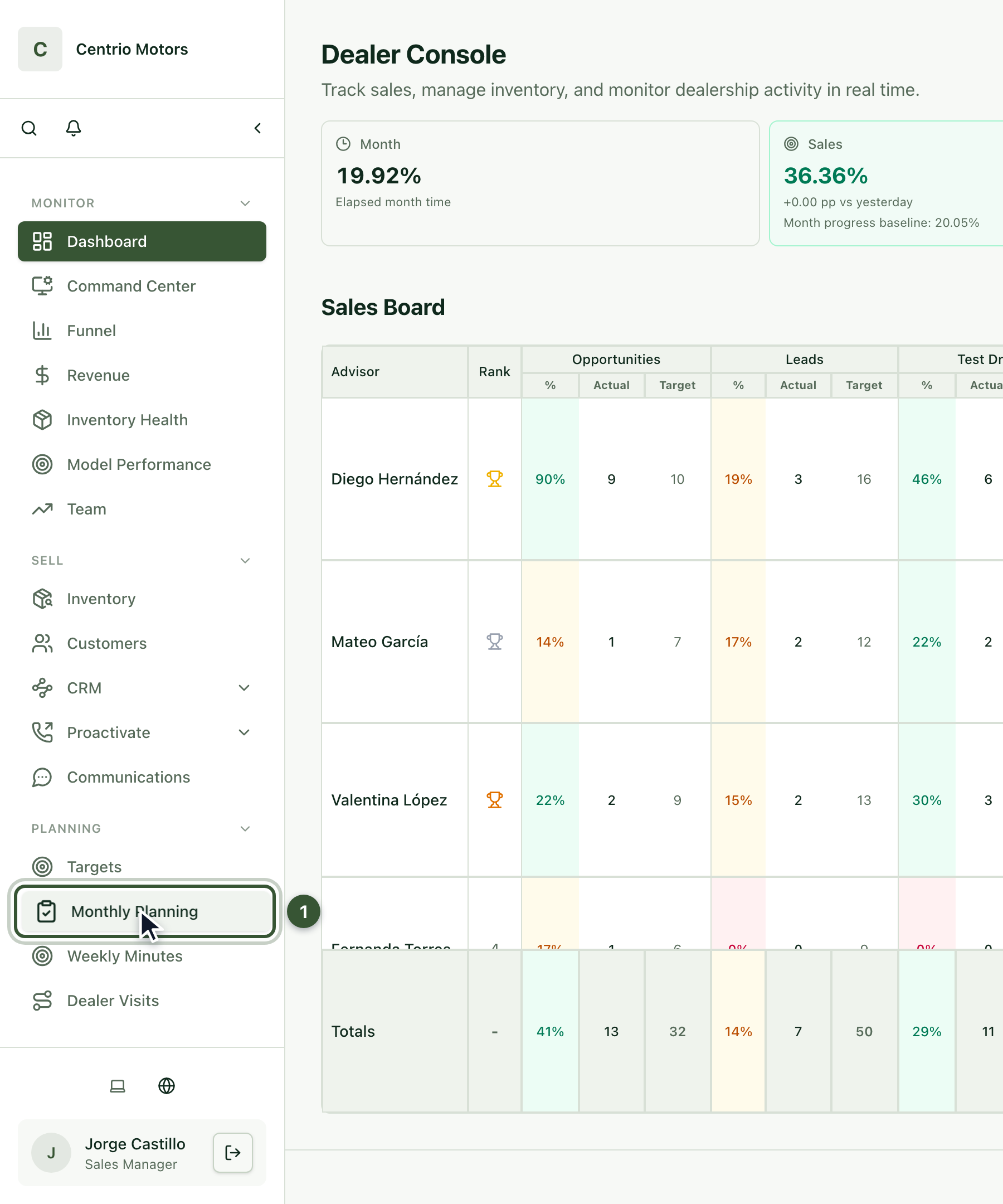
In the sidebar, under Planning, click Monthly Planning (1).
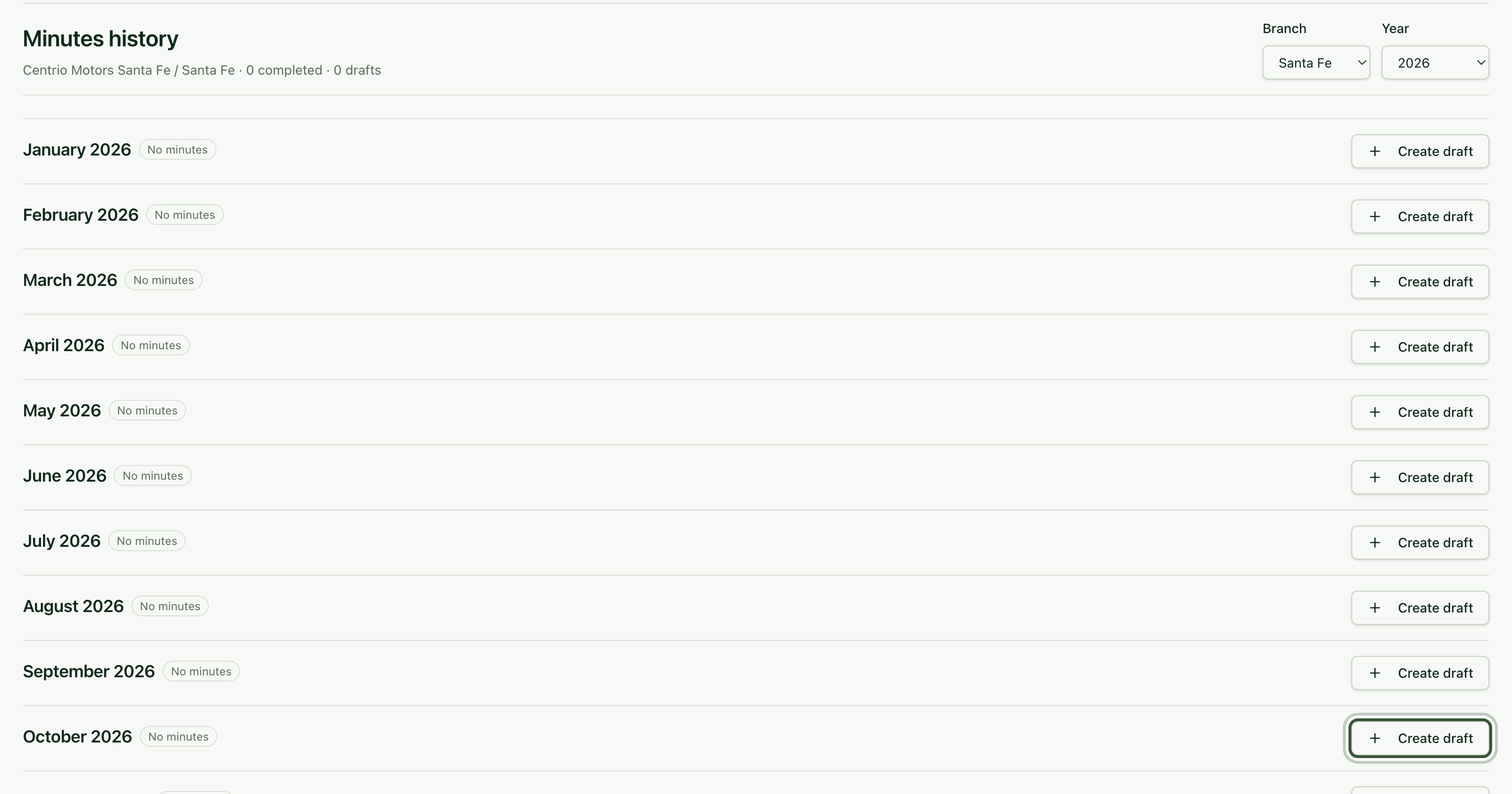
The Minutes history shows each month of the year with its status: No minutes, Draft or Completed.
On the month you're planning, press Create draft.
2. Fill in the header
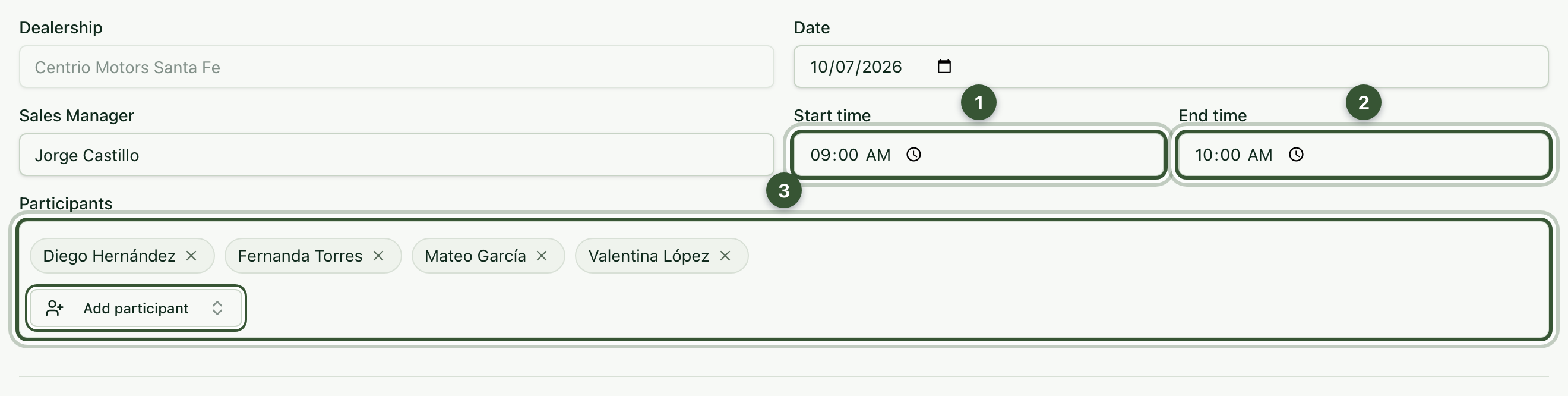
The dealership, the date and the sales manager are already filled in. Enter the Start time (1) and End time (2), and under Participants (3) use Add participant to choose who attended.
3. Review last month's results
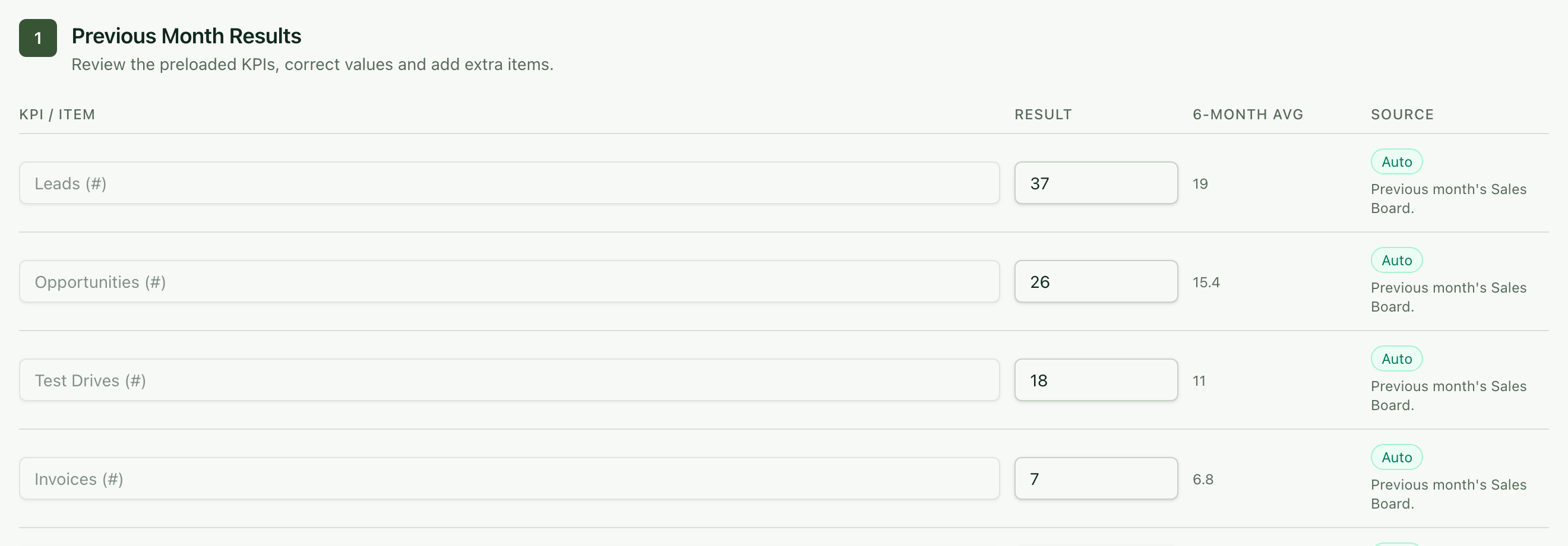
Previous Month Results already brings the Sales Board indicators (leads, opportunities, test drives, invoices and conversions), with their six-month average. You can correct a value or add another topic with Add item. Below, write down the Positive aspects to keep.
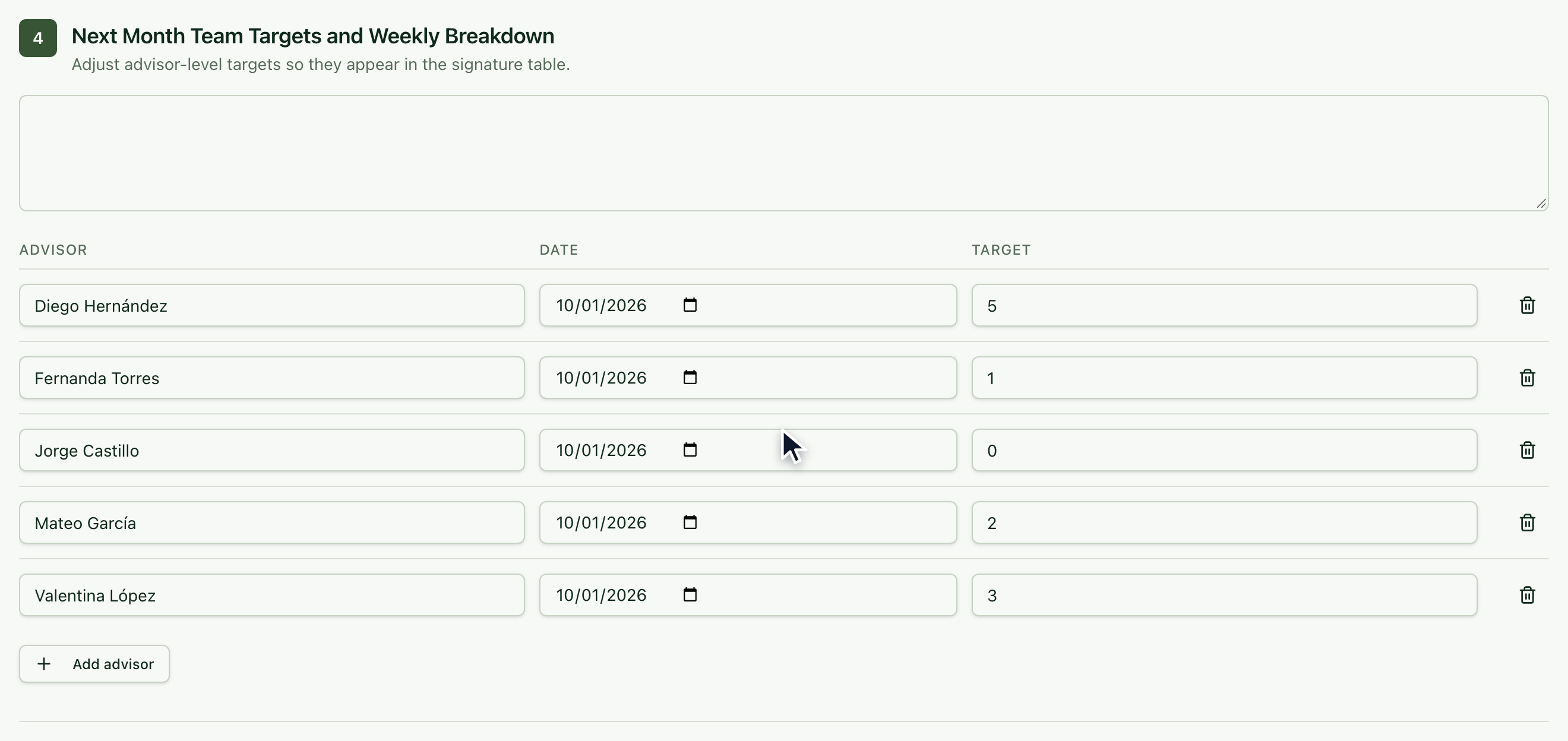
4. Set the team's targets
Team Targets already shows each advisor's sales target for the month. Adjust it if needed, add advisors with Add advisor and write how the target is split by week.
5. Fill in the rest of the minutes
Complete Recognitions, Improvement Areas, Strategies, Marketing, Proactivity and Special announcements. On the left, Meeting rhythm shows how many sections you've done; at the top, the yellow notice lists the fields still missing.
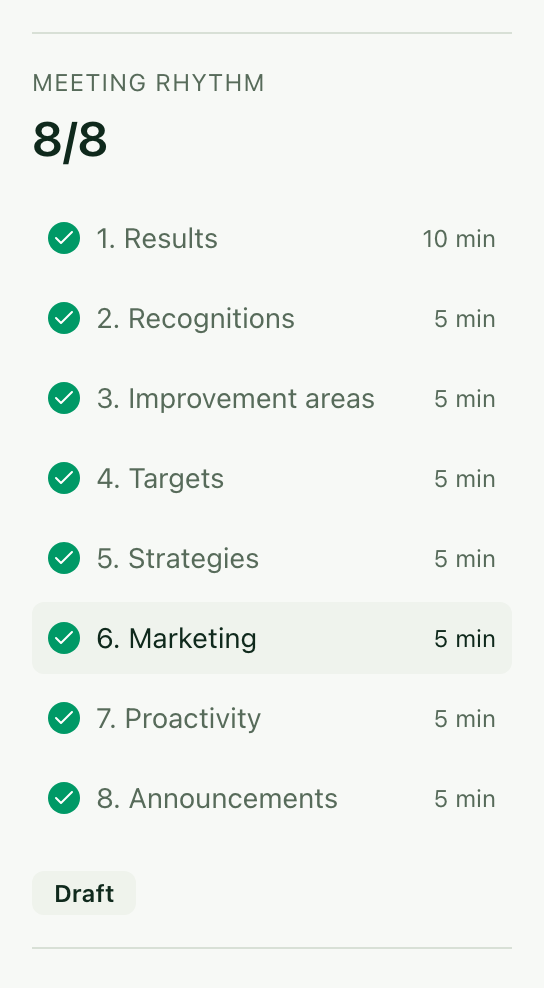
The minutes save on their own while you type.
6. Complete them
Click Complete and confirm with Complete minutes.
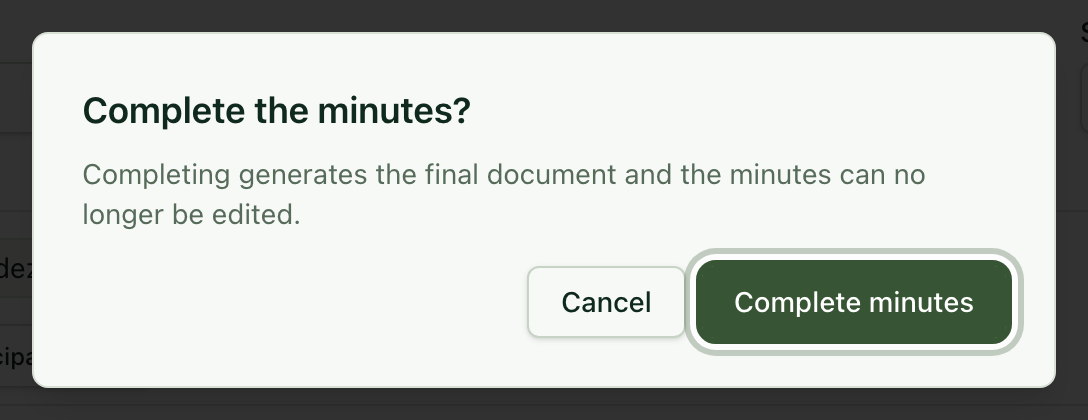
When you complete them:
Each advisor's sales target is published to Targets (and the Sales Board).
The minutes are closed and you can open their signed version with Open signed HTML.
Frequently asked questions
Can I edit the minutes after completing them? No: completed minutes can no longer be edited. Review everything before completing.
Can I create an action plan from the minutes? Yes. At the end of the minutes open Create action-plan draft from this minute.