
An action plan turns a goal into concrete, dated steps with follow-up. Use it, for example, when an advisor is falling behind.
1. Open Action Plans
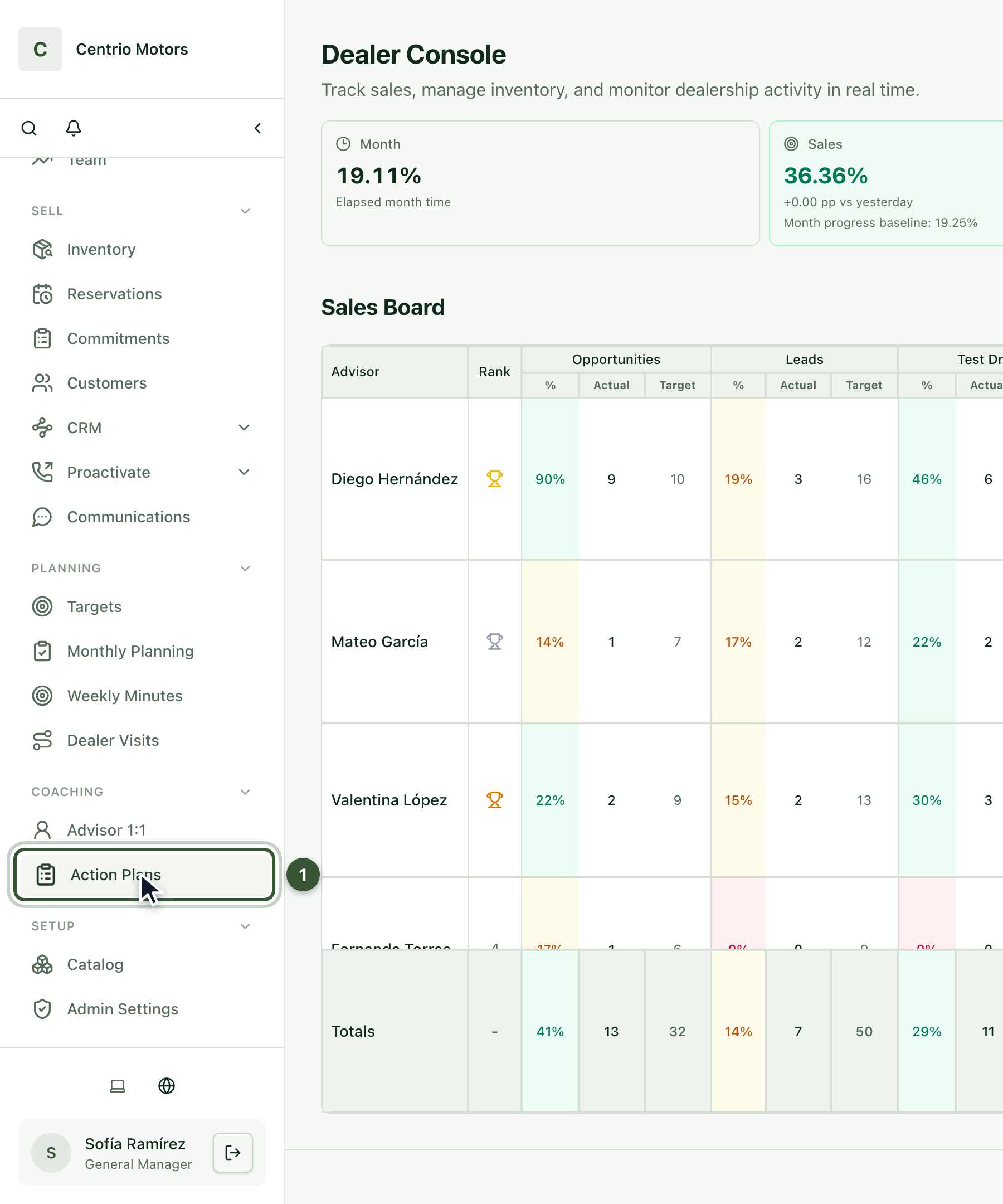
In the sidebar, under Coaching, click Action Plans (1). At the top you see how many plans you have in each status, and the filters let you view them by branch, status, scope or advisor.
2. Create the plan
Under Create standalone action plan, type the Title (1).
Under Scope choose Advisor and select the advisor (2).
Choose the Priority and the Due date.
Press Create draft (3).

The plan is created as a Draft: it doesn't count in the advisor's follow-up yet.
3. Add action items
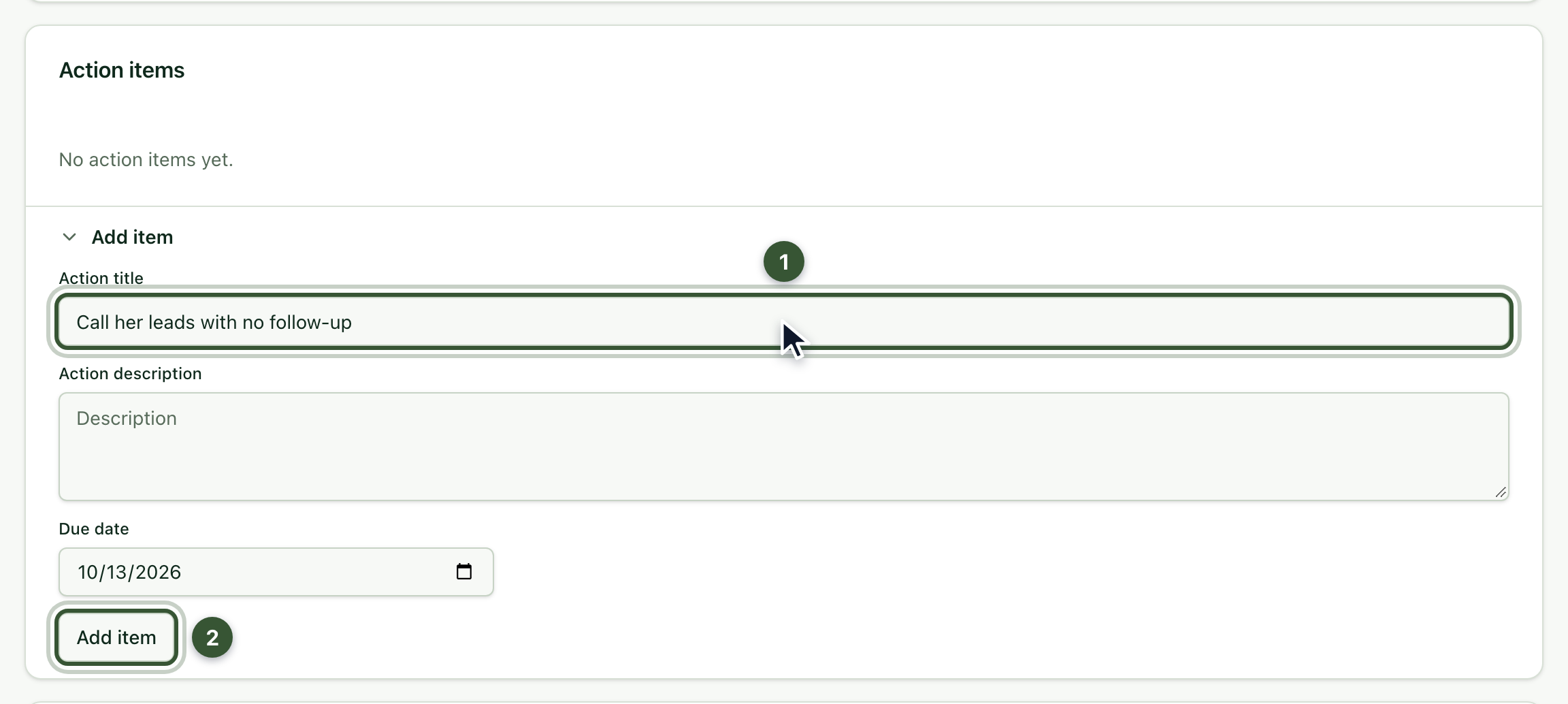
Under Action items, open Add item and type the action's title (1).
Optionally add a description and a due date.
Press Add item (2).
4. Activate the plan
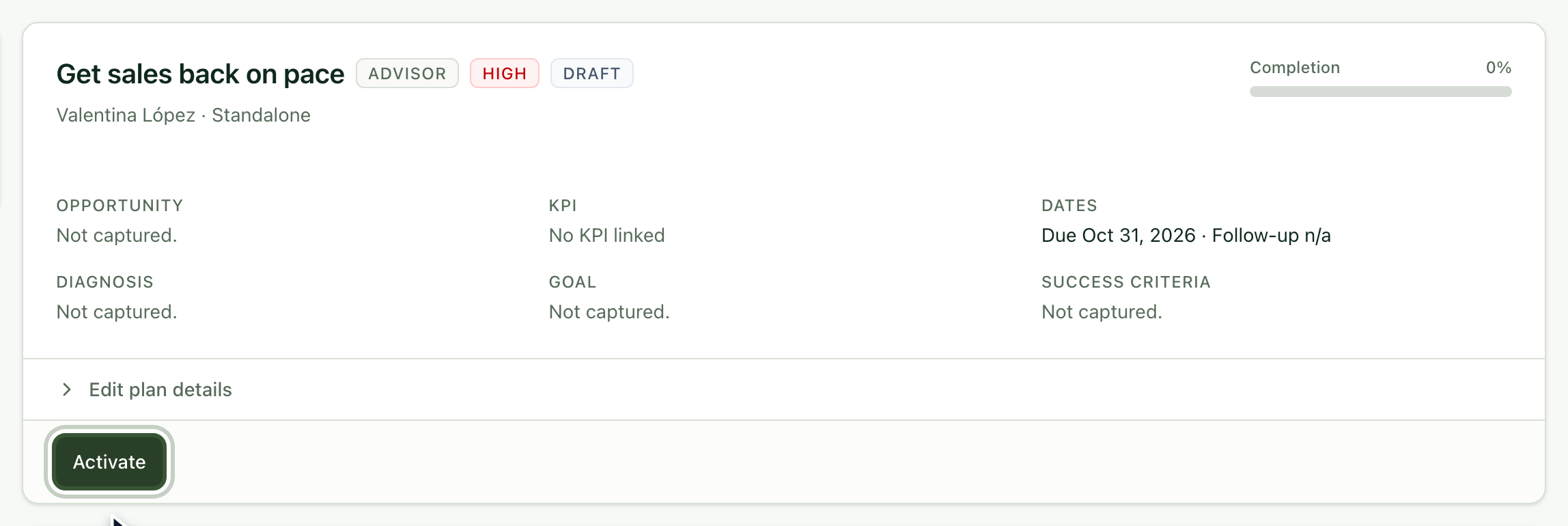
When it's ready, click Activate. The plan becomes Active and its follow-up begins.
5. Record progress
At each check-in, under Follow-ups and timeline:
Under Update progress, enter the Progress % (1).
Write a Manager progress note (2).
Press Save progress (3).
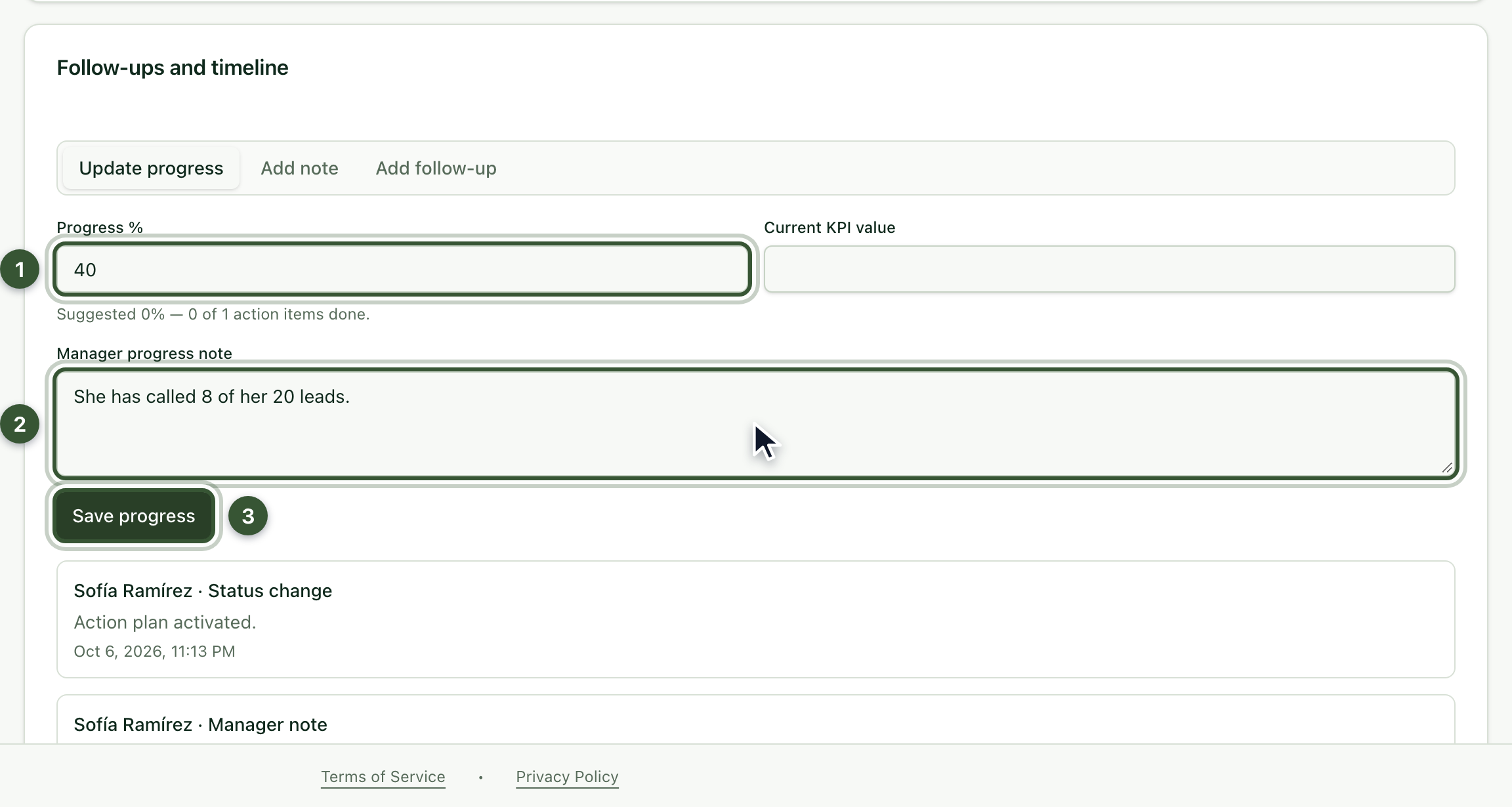
Everything stays on the plan's timeline. From there you can also Add note or Add follow-up with a date.
Frequently asked questions
Can I create a plan from a minute or a 1:1? Yes. At the end of the Monthly Planning, Weekly Minutes and Advisor 1:1 pages there's a section to create an action-plan draft already linked to that meeting.
The advisor doesn't show up when creating the plan. The list shows the advisors of the branch chosen in the filters: change the Branch and press Apply.
I can't close a dealer plan. Plans with Dealer scope are evaluated and closed by the district manager.