
As a manager, the Dealer Console shows your whole team's progress and lets you see the detail behind every number.
1. Open the Console
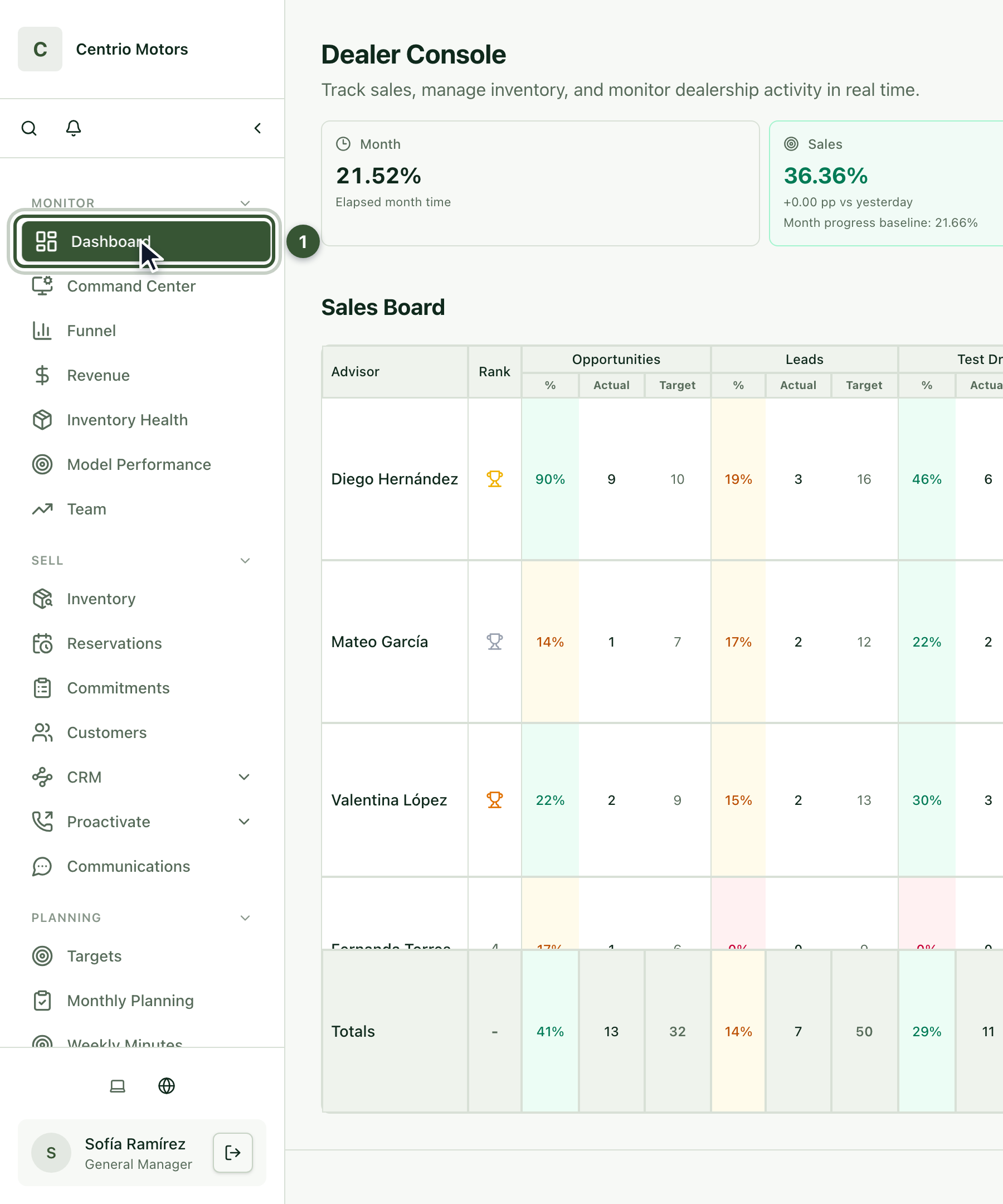
When you sign in to Centrio you'll see the Dealer Console. You can always come back to it with Dashboard (1), in the sidebar.
2. Filter by branch and brand
At the top right choose the Branch and the Brand. The cards and the Sales Board recalculate with your selection.
3. Switch between progress and daily pace
The cards show the whole dealership's progress. With the /day button you switch to daily pace: how much you're doing per day against what you need per day to reach the target. With % you go back to the month's percentage.

4. Read the Sales Board
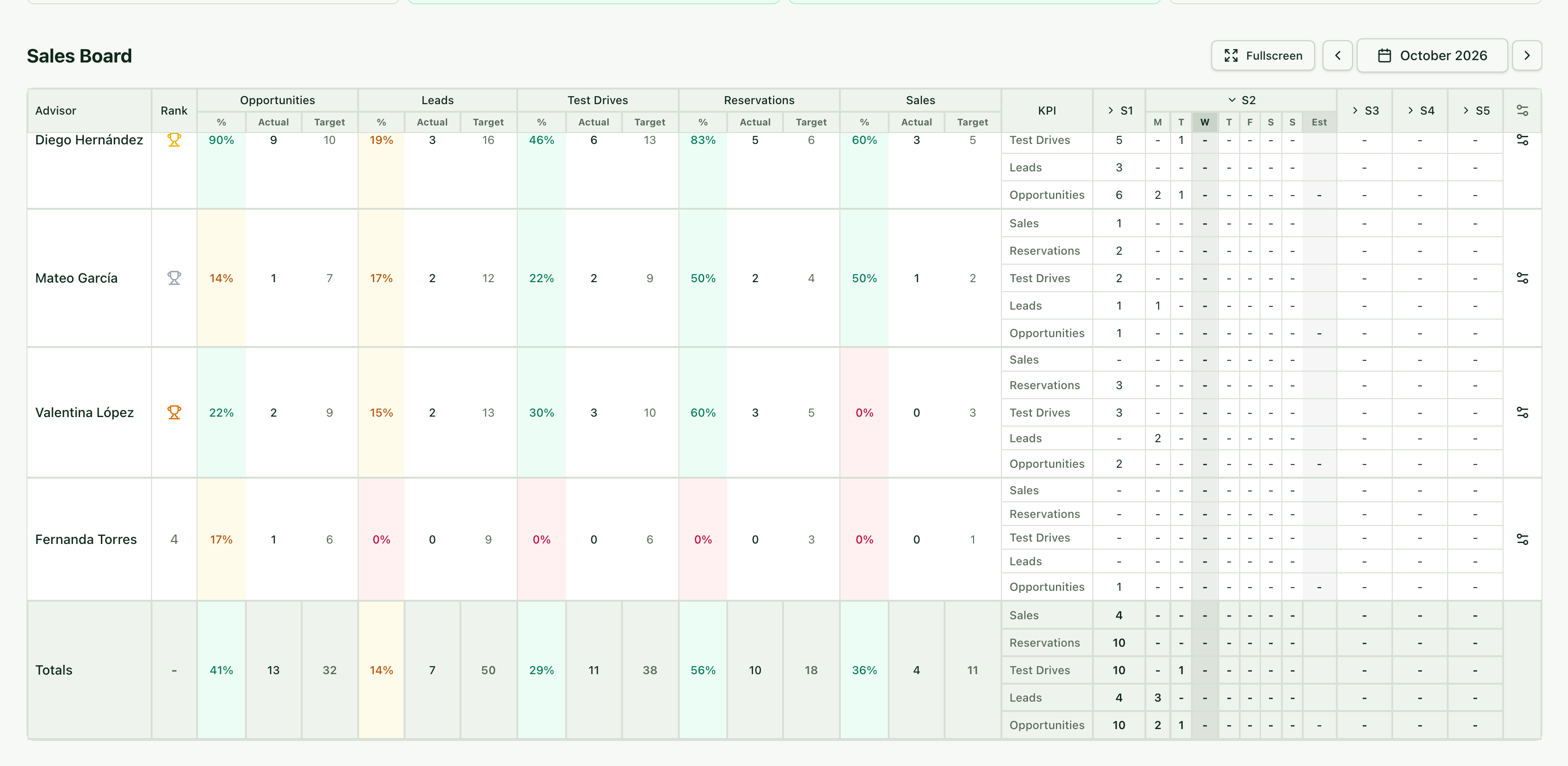
Each advisor has their own row, with their progress on each indicator, and the dealership Totals are at the bottom.
5. Open the detail of any number
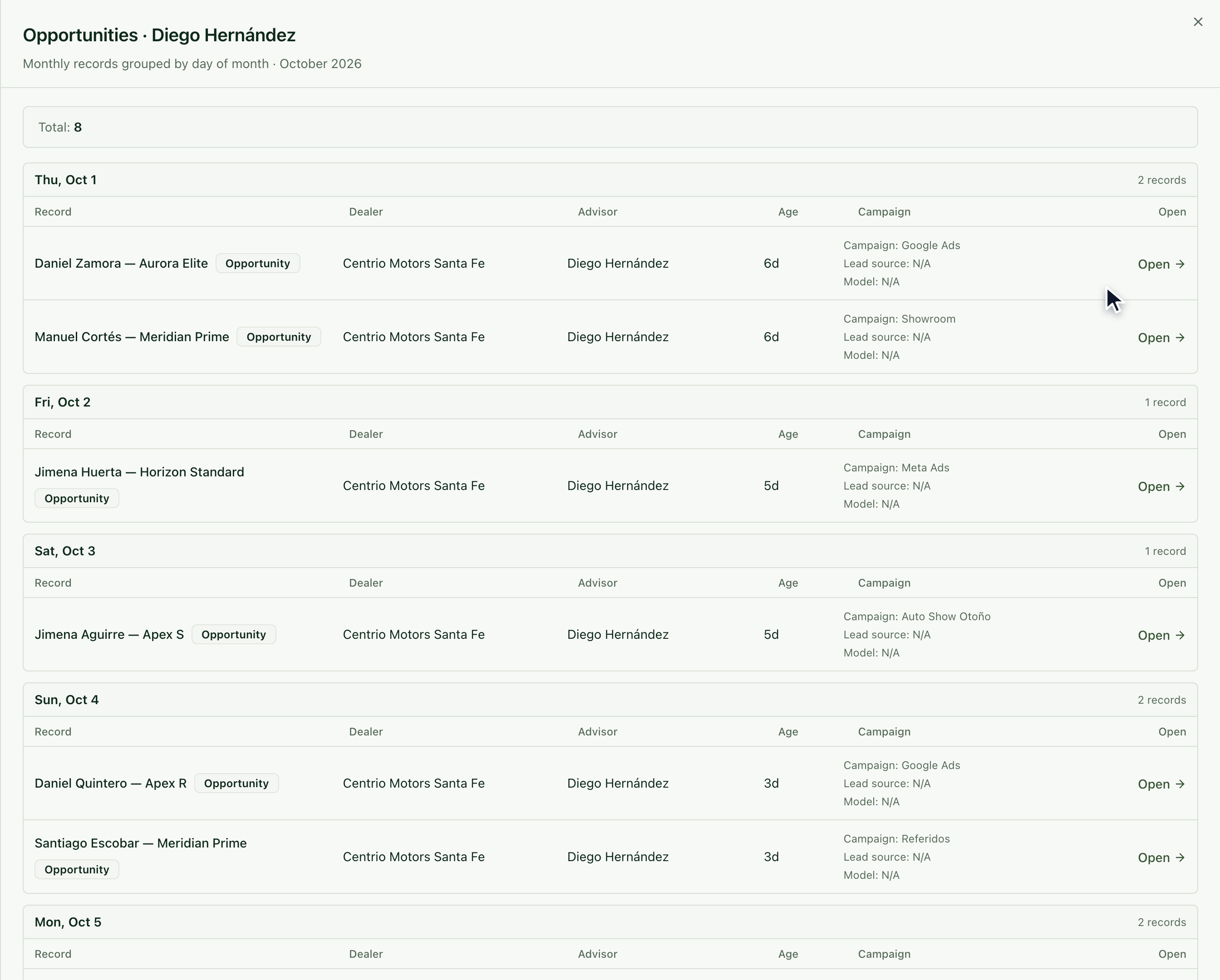
Click any number on the board to see the records behind it, grouped day by day. With Open you go straight to each record.
Frequently asked questions
Can I hide the cards? Yes, with the Hide cards button, next to % and /day.
Why do the numbers change when I filter? The branch and brand you choose apply to the whole Console.