Keep every sale in motion inside the CRM: create the opportunity, define what comes next, move it through the stages and keep a record of every conversation.
Sign in to Centrio with your email and password.
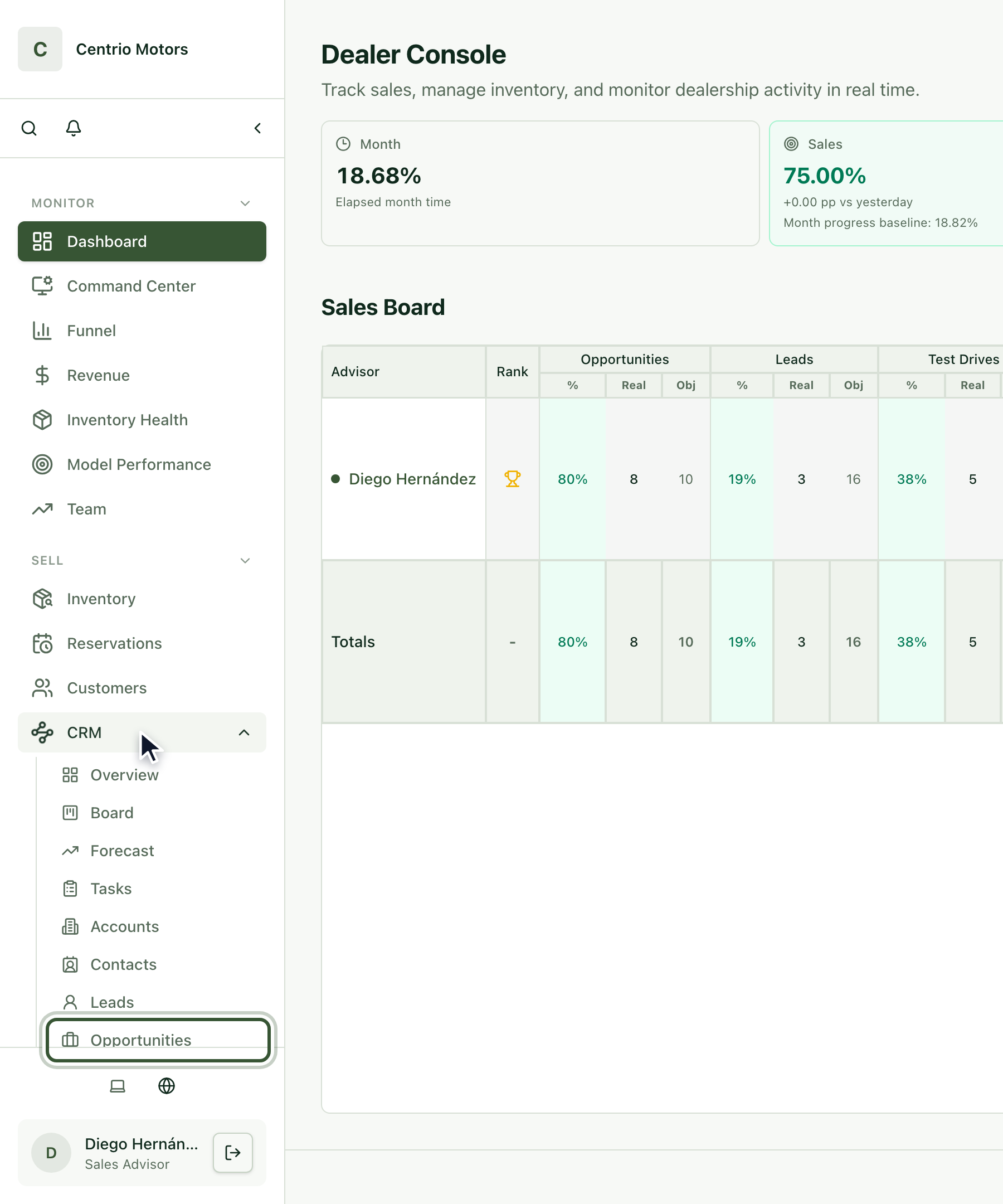
In the sidebar, click CRM and then Opportunities.
Here you see your open opportunities, each with its stage, the customer and the owner. As an advisor, you only see your own: the Advisor filter above the list shows it.
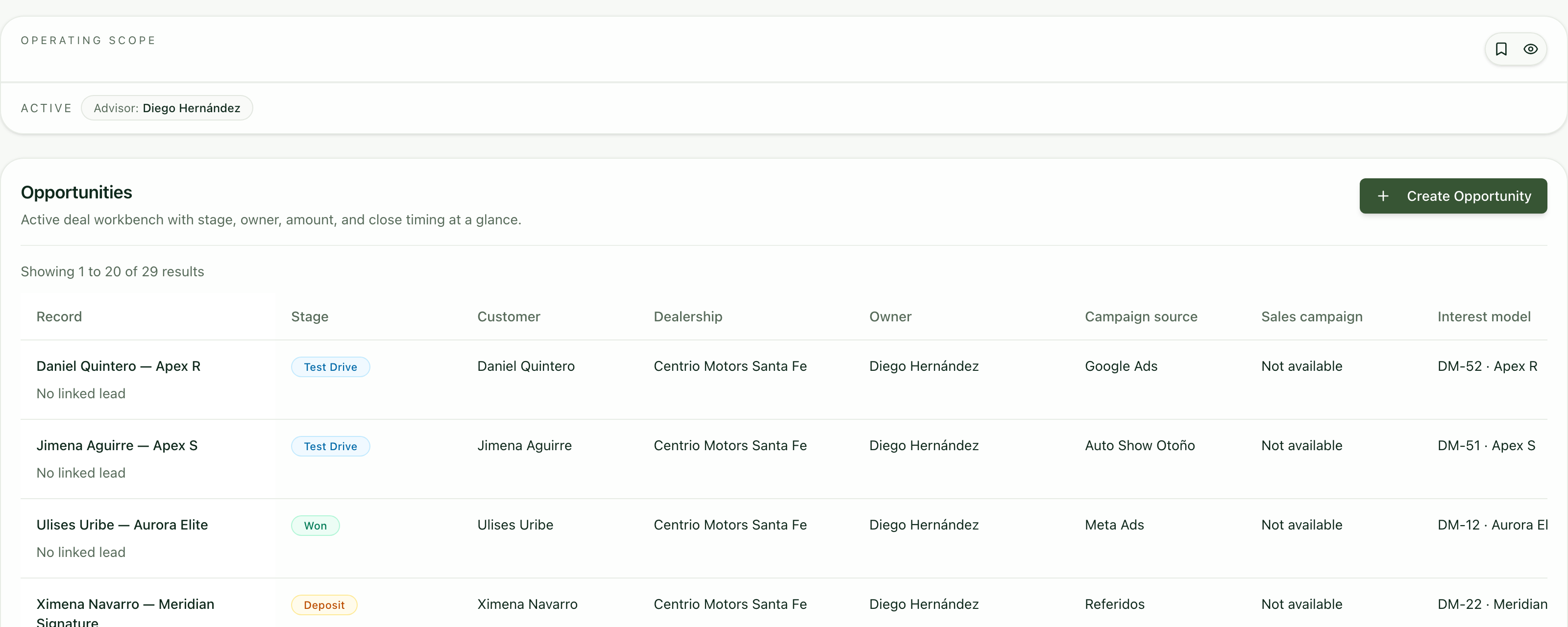
Click Create Opportunity.
Write an Opportunity title and choose the Customer. If they aren't registered yet, capture a new contact in the same window.
Choose the Stage it is at and the Close date.
Enter the Amount, the Probability and the Currency.
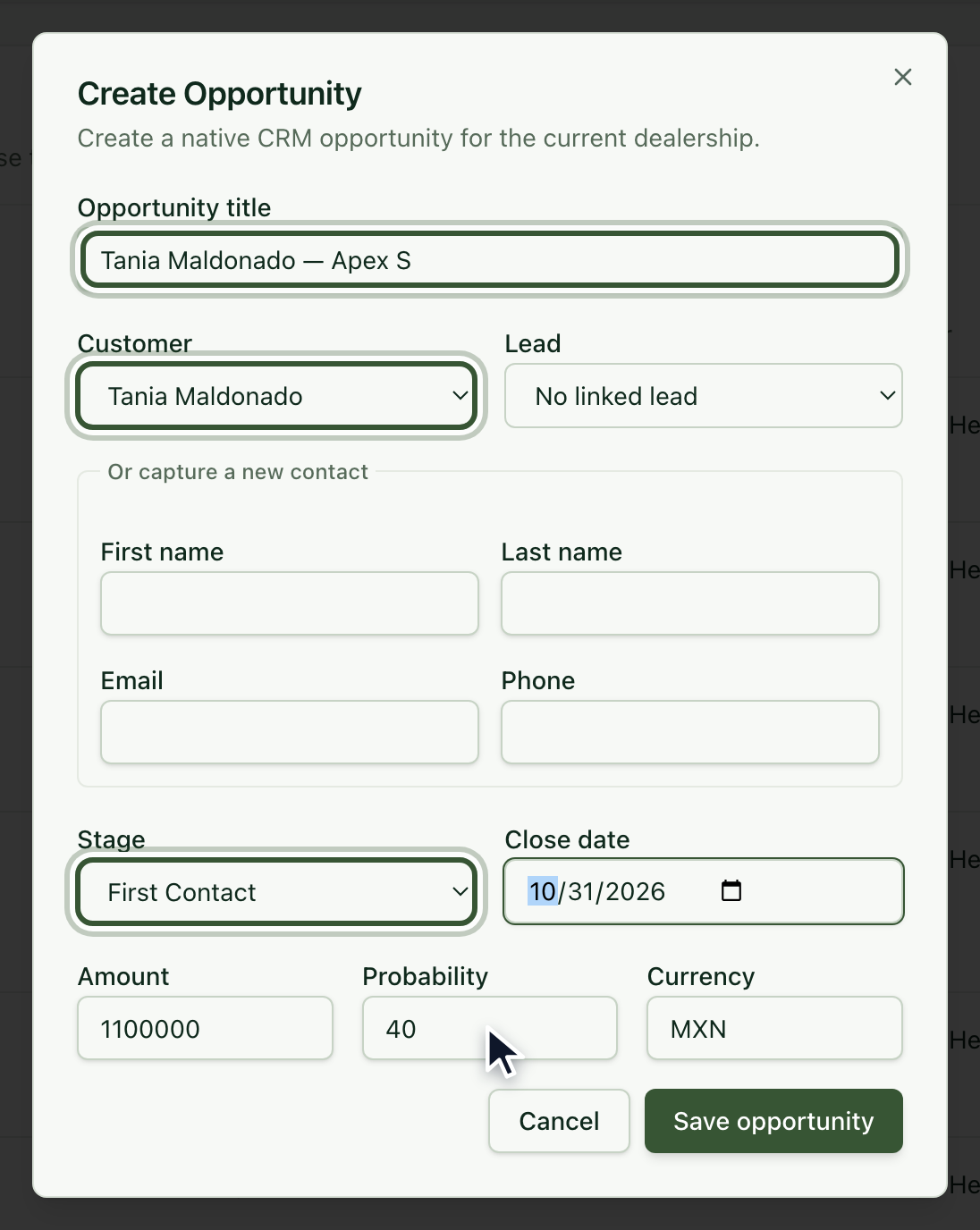
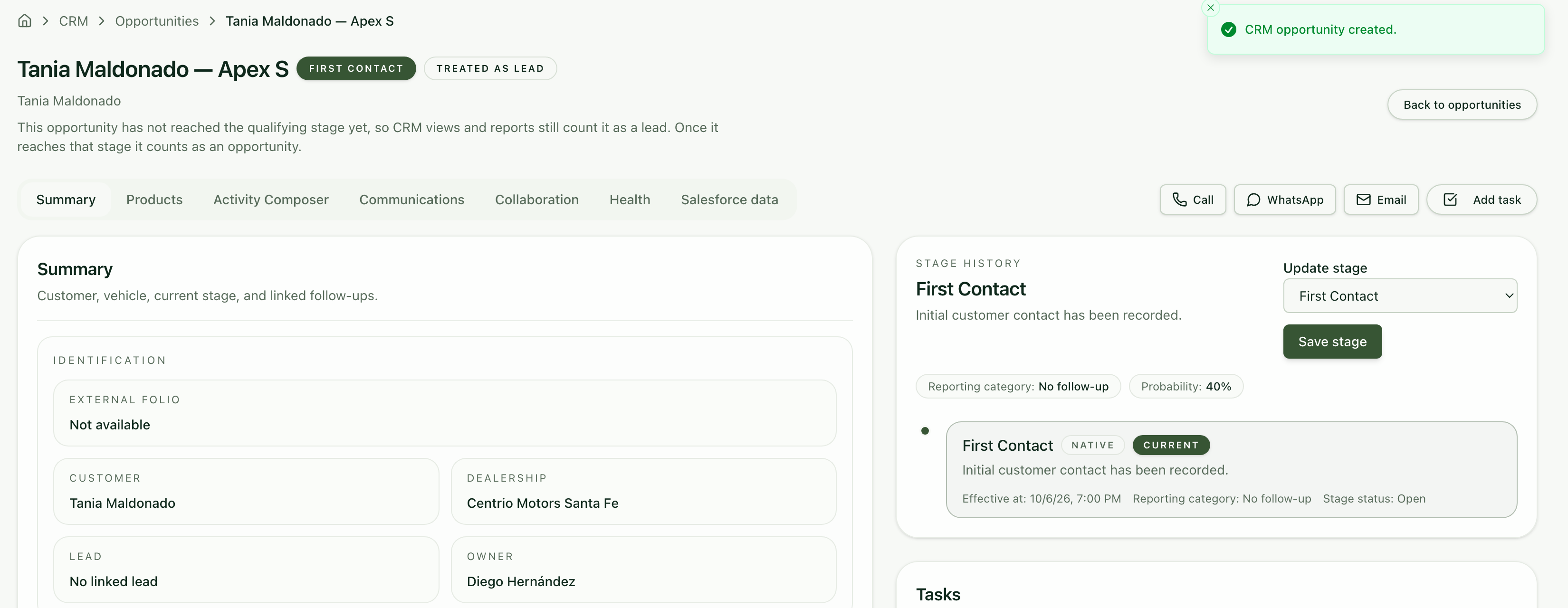
Click Save opportunity. Centrio opens its page so you can keep working on it.
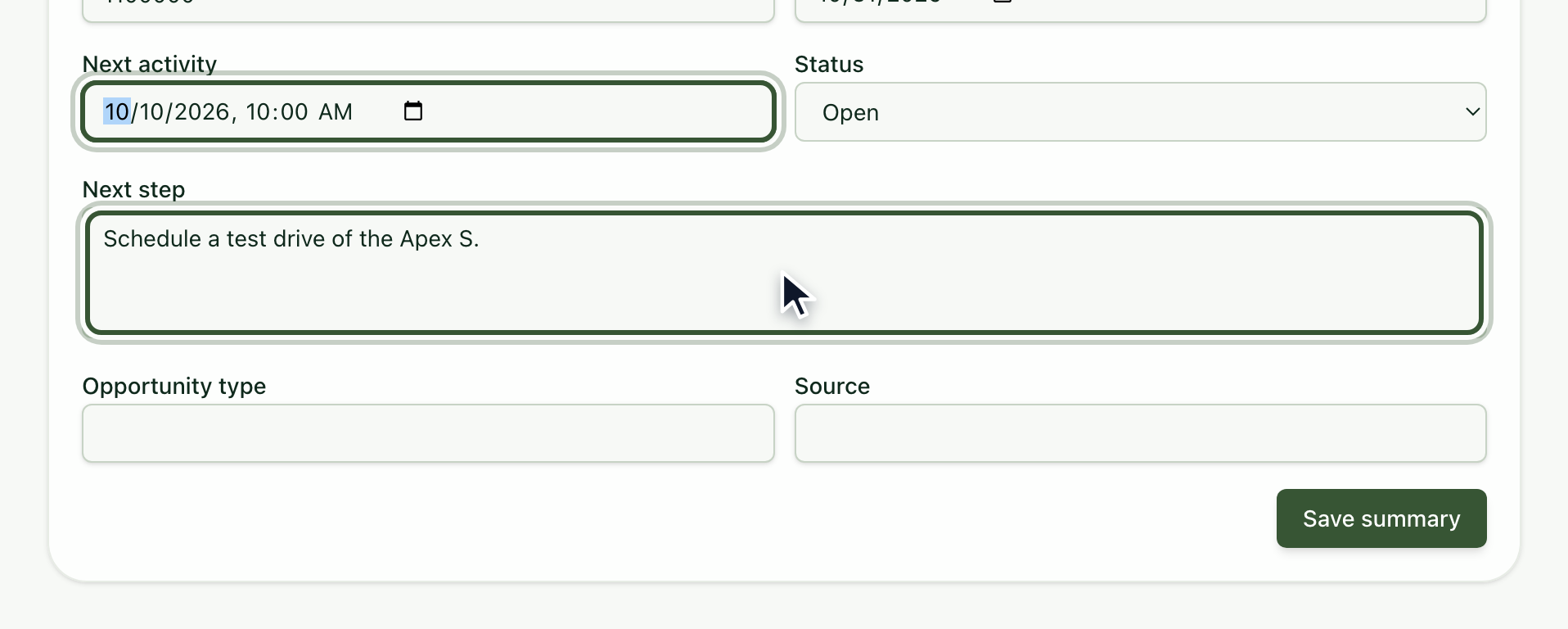
In the Summary tab, write the Next step: what you will do with this opportunity and when (Next activity). Save with Save summary.
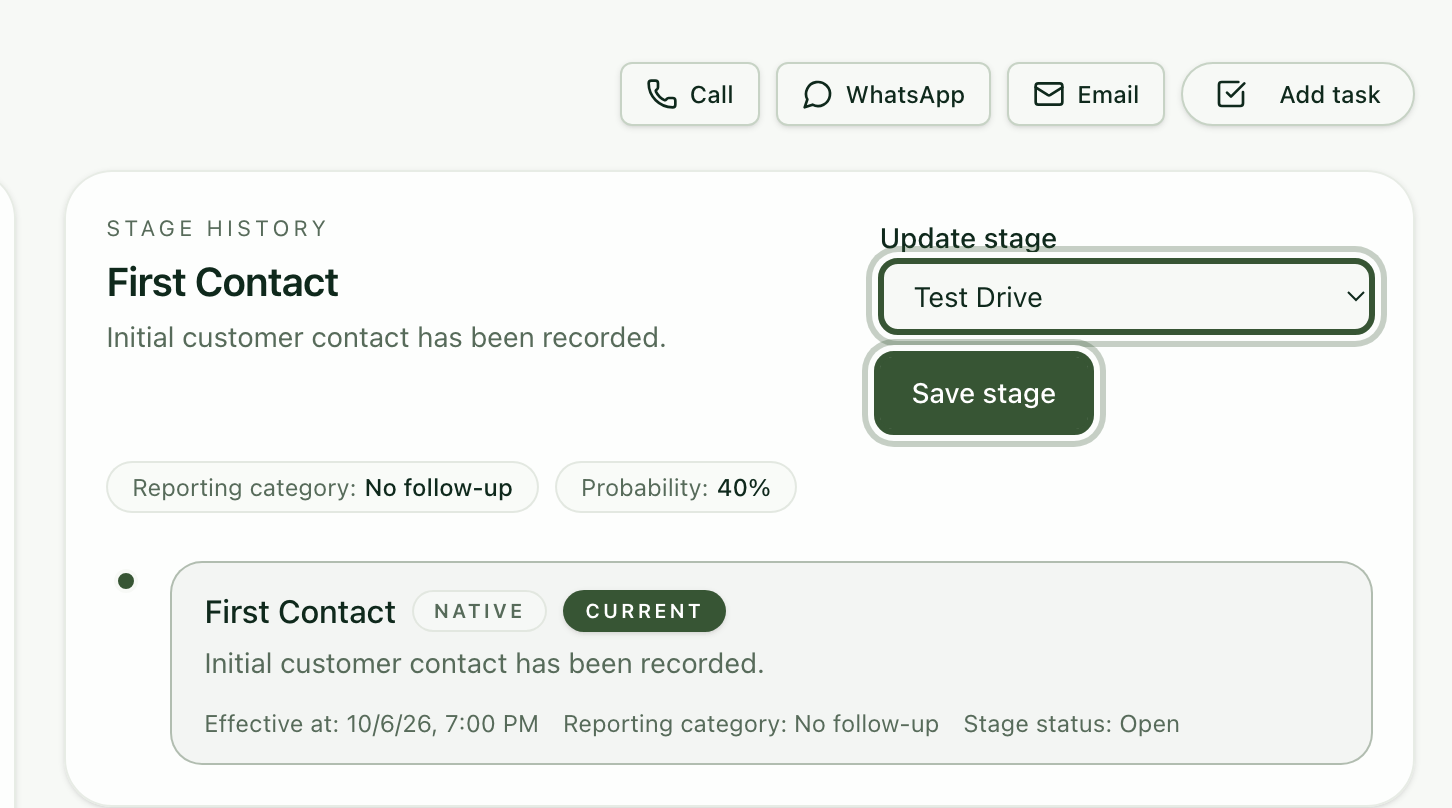
When the opportunity moves forward, update its stage: under Update stage choose, for example, Test drive, and click Save stage.
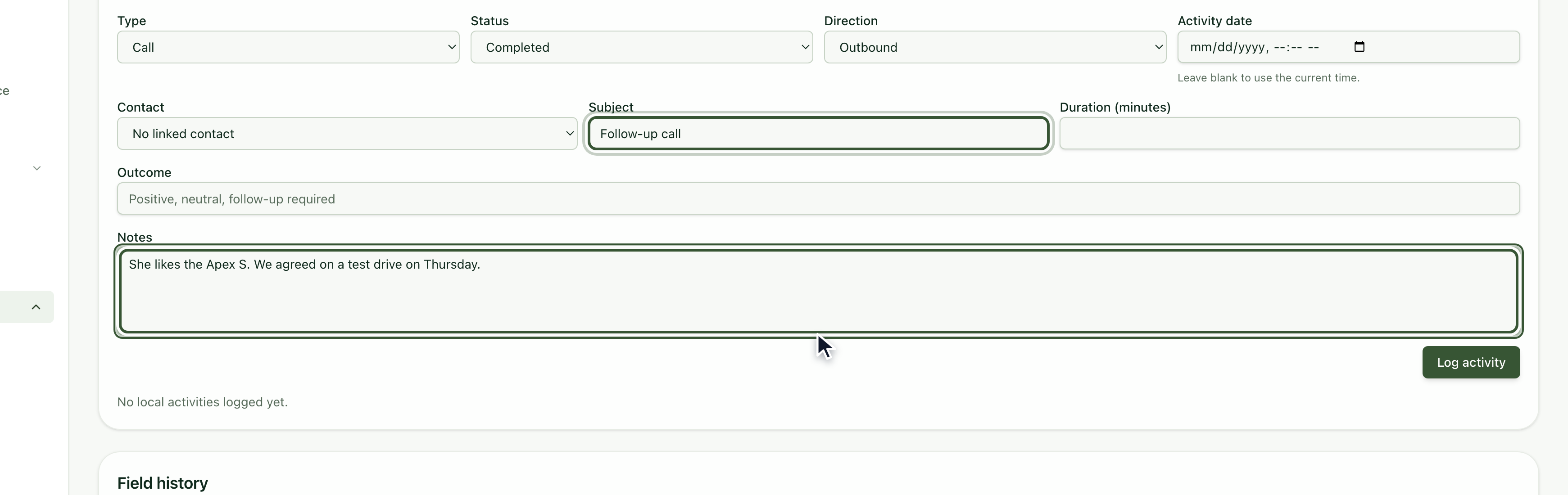
Every time you talk to the customer, open the Activity Composer tab. Write a Subject, note what happened and click Log activity.
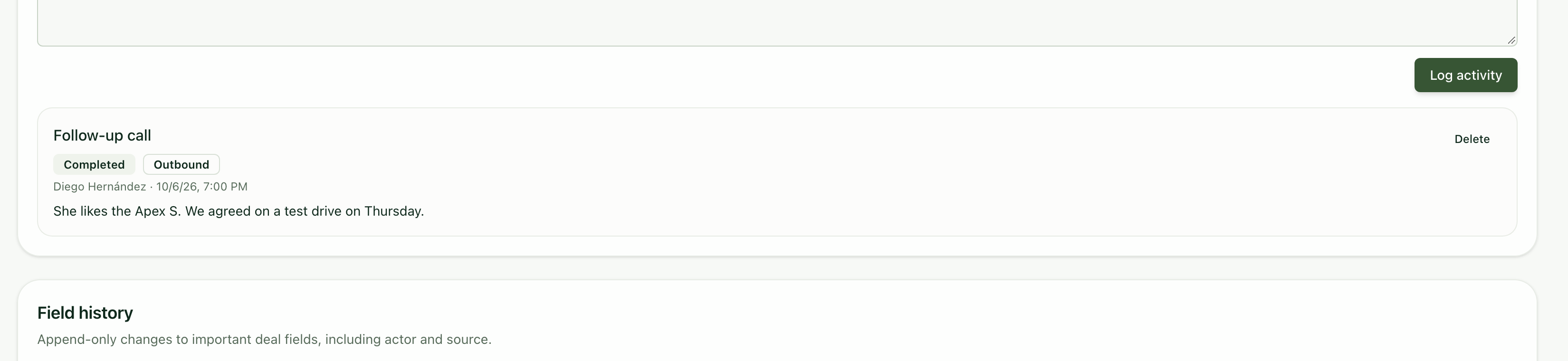
The activity is saved in the opportunity's history.
Why does it say "Treated as lead"? An opportunity that hasn't reached the qualifying stage yet is counted as a lead in the CRM and in the reports. When it reaches that stage, it counts as an opportunity.
How do I go back to the list? With the Back to opportunities button, at the top right of the page.
Can I call or write from the page? Yes: at the top of the page you have Call, WhatsApp, Email and Add task.
I only see my own opportunities. That's right: as an advisor, the CRM only shows the ones assigned to you.
