Register a new customer and save their preferences and your conversations with them, so you never lose an opportunity.
Sign in to Centrio with your email and password.
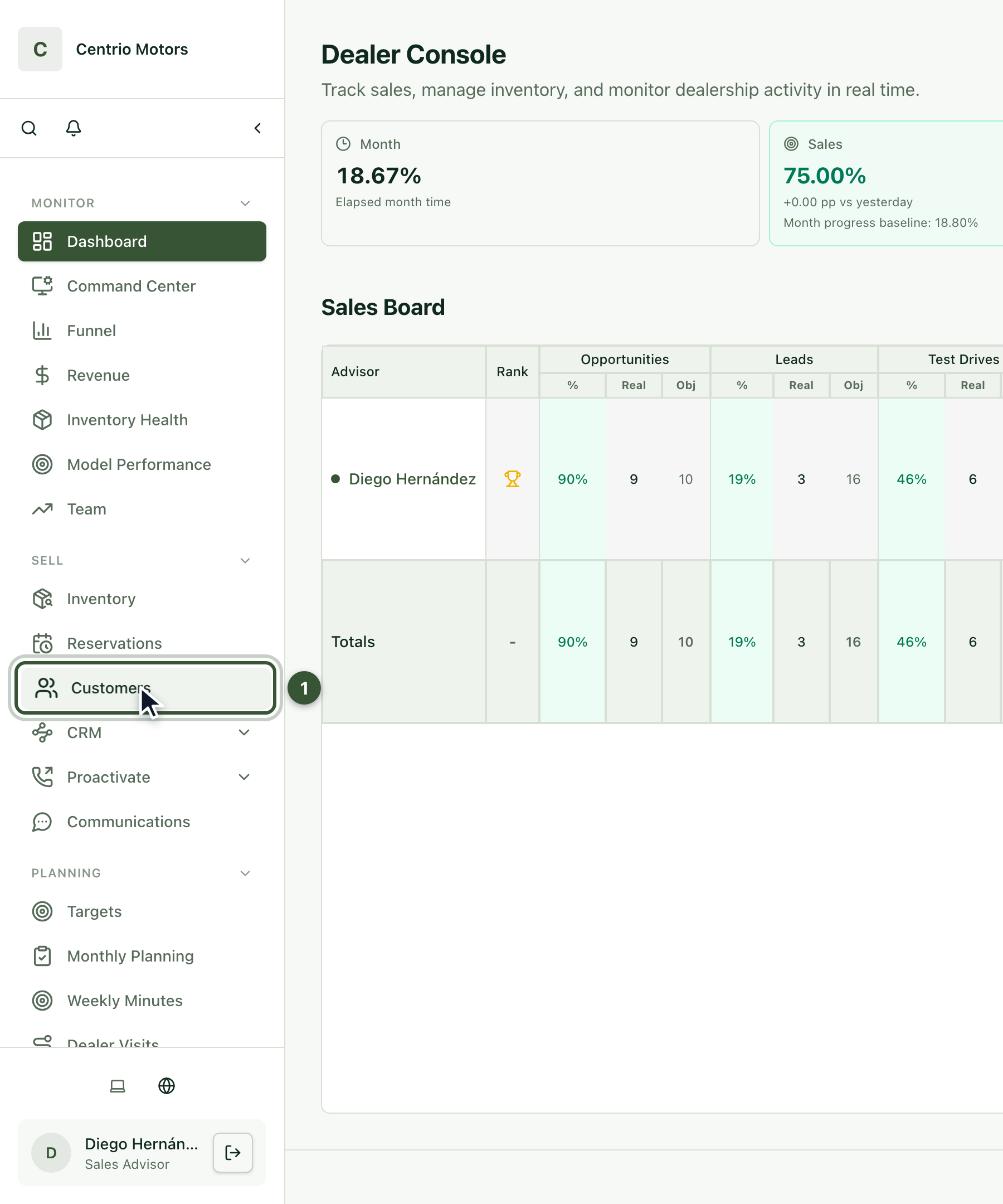
In the sidebar, under Sell, click Customers (1).
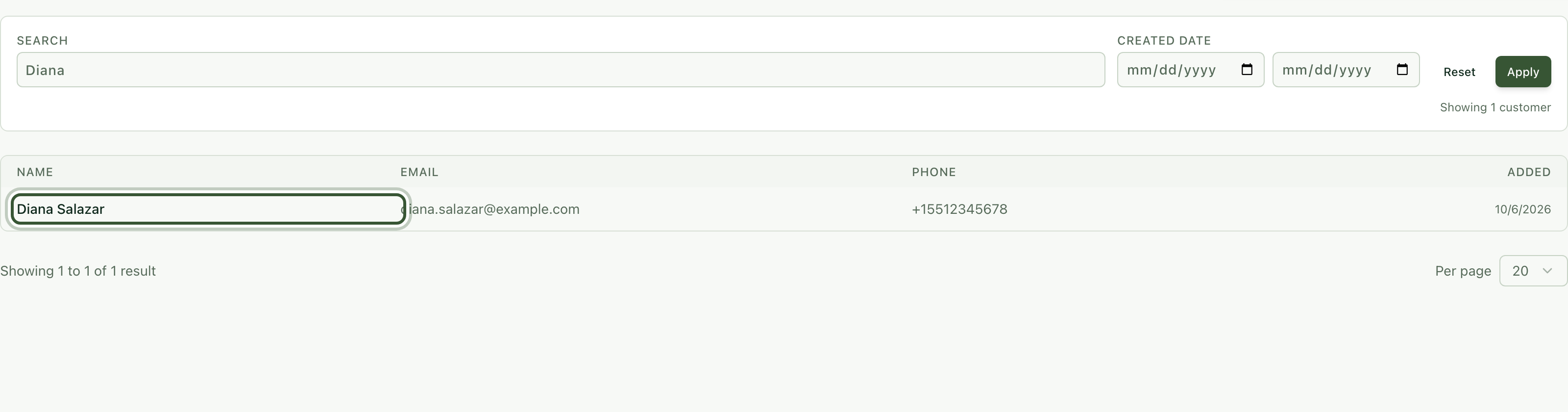
So you don't duplicate anyone, search first by name, email or phone. Type, for example, Diana and press Apply.

Since they don't show up, click Add Customer.
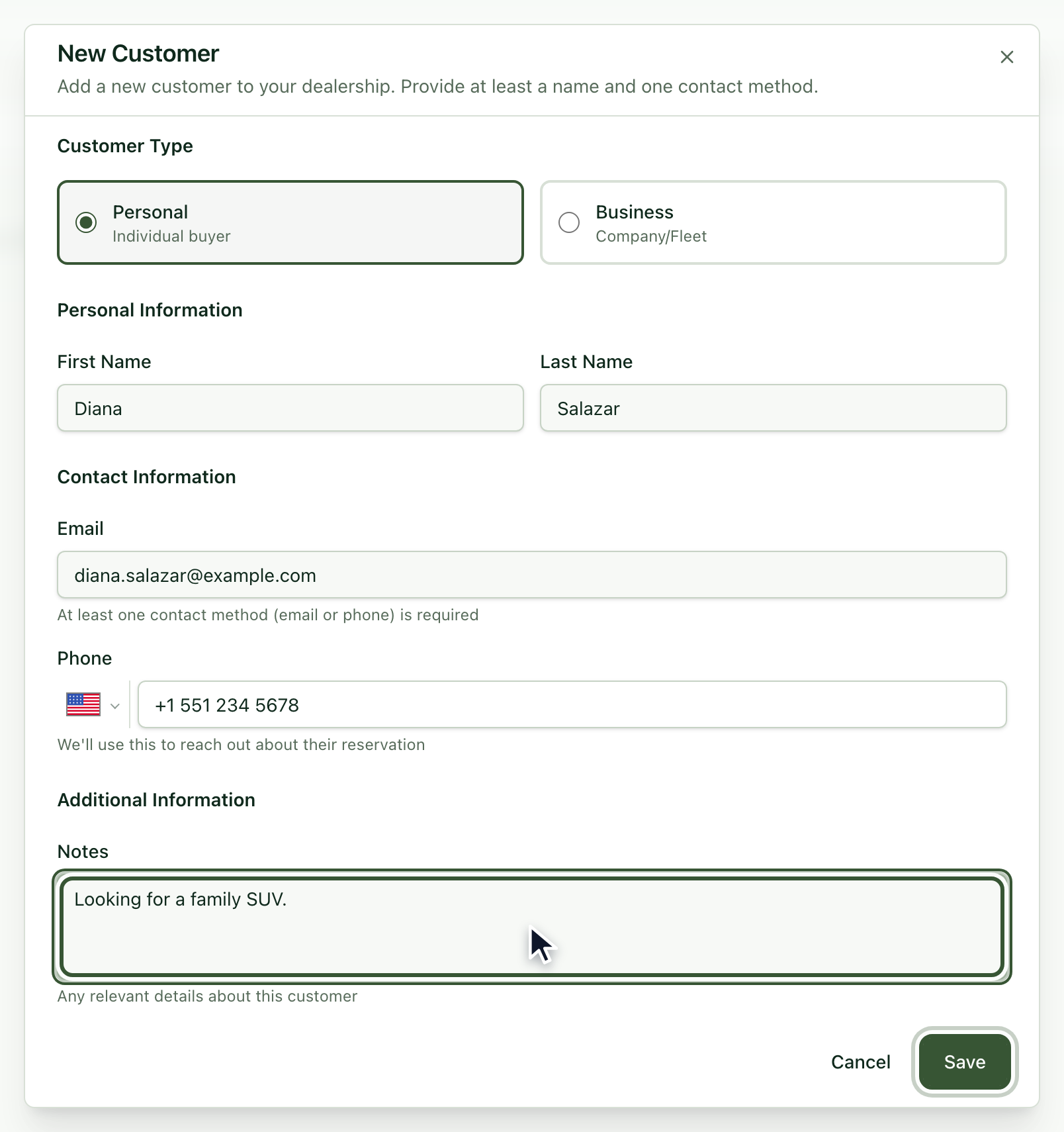
Choose the Customer Type: Personal (individual buyer) or Business (company or fleet).
Enter their First Name, Last Name, Email and Phone. You need at least one way to contact them.
In Notes write what you know about them: what they are looking for, how they prefer to be contacted.
Click Save.
Your customer now shows up in the list. Click their name to open their file.
There you'll find their contact details, their notes and, on the right, their Vehicle Preferences, Interactions and Reservations. From the file you can also Call, send an Email or message them on WhatsApp.
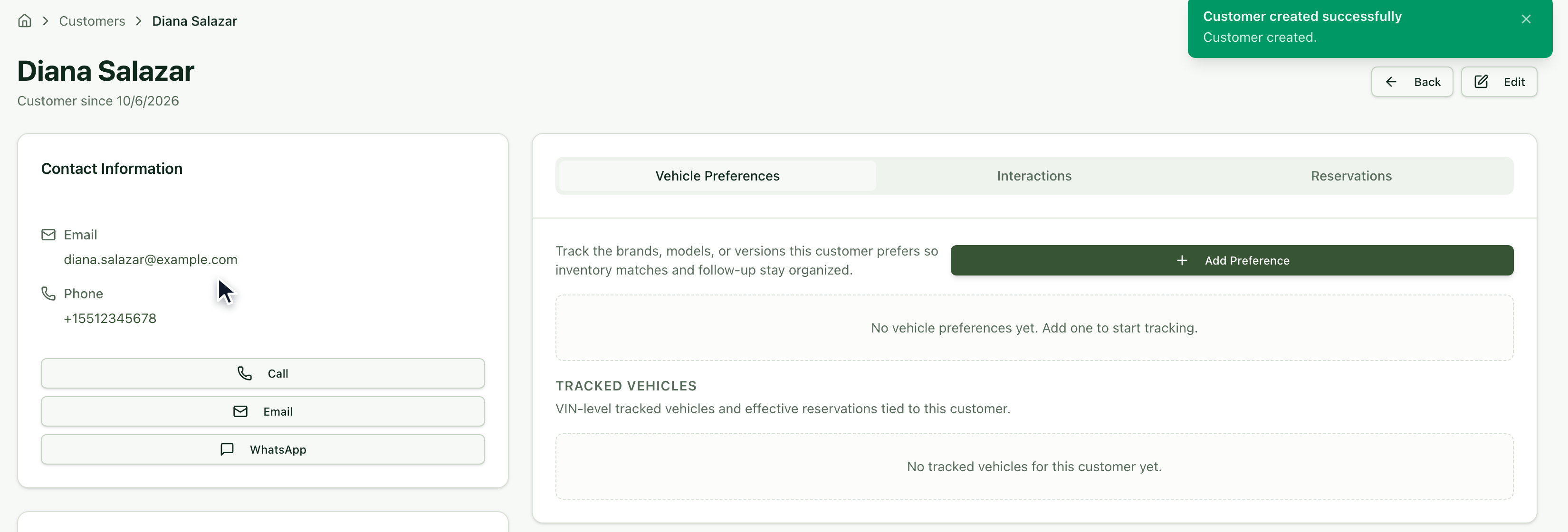
Under Vehicle Preferences, click Add Preference.
Choose the Brand (required) and, if you want, the Model.
Set the Priority and, if you know it, the budget (Min Budget and Max Budget).
Click Save.
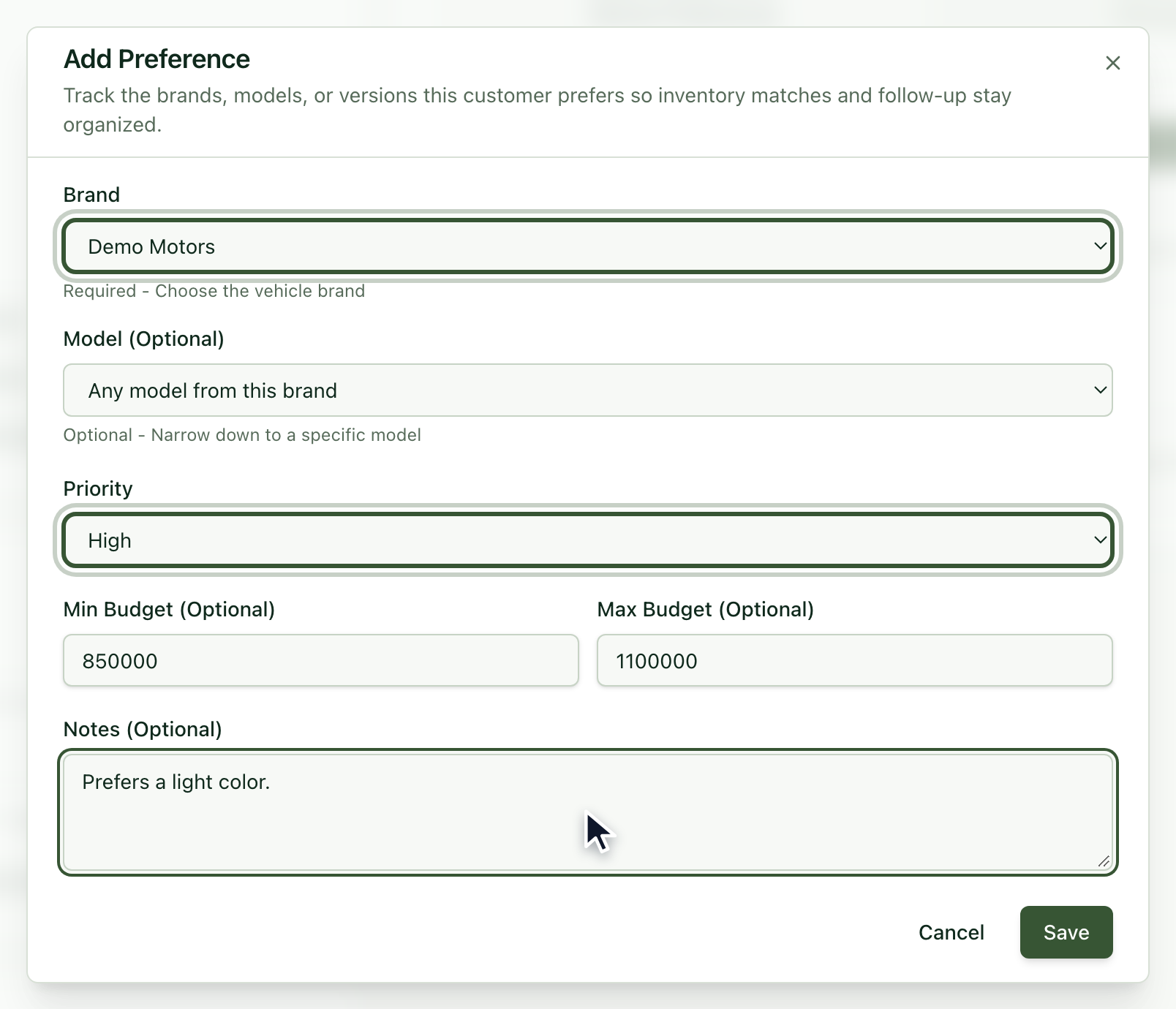
That way Centrio can alert you when a vehicle arrives that matches what they are looking for.
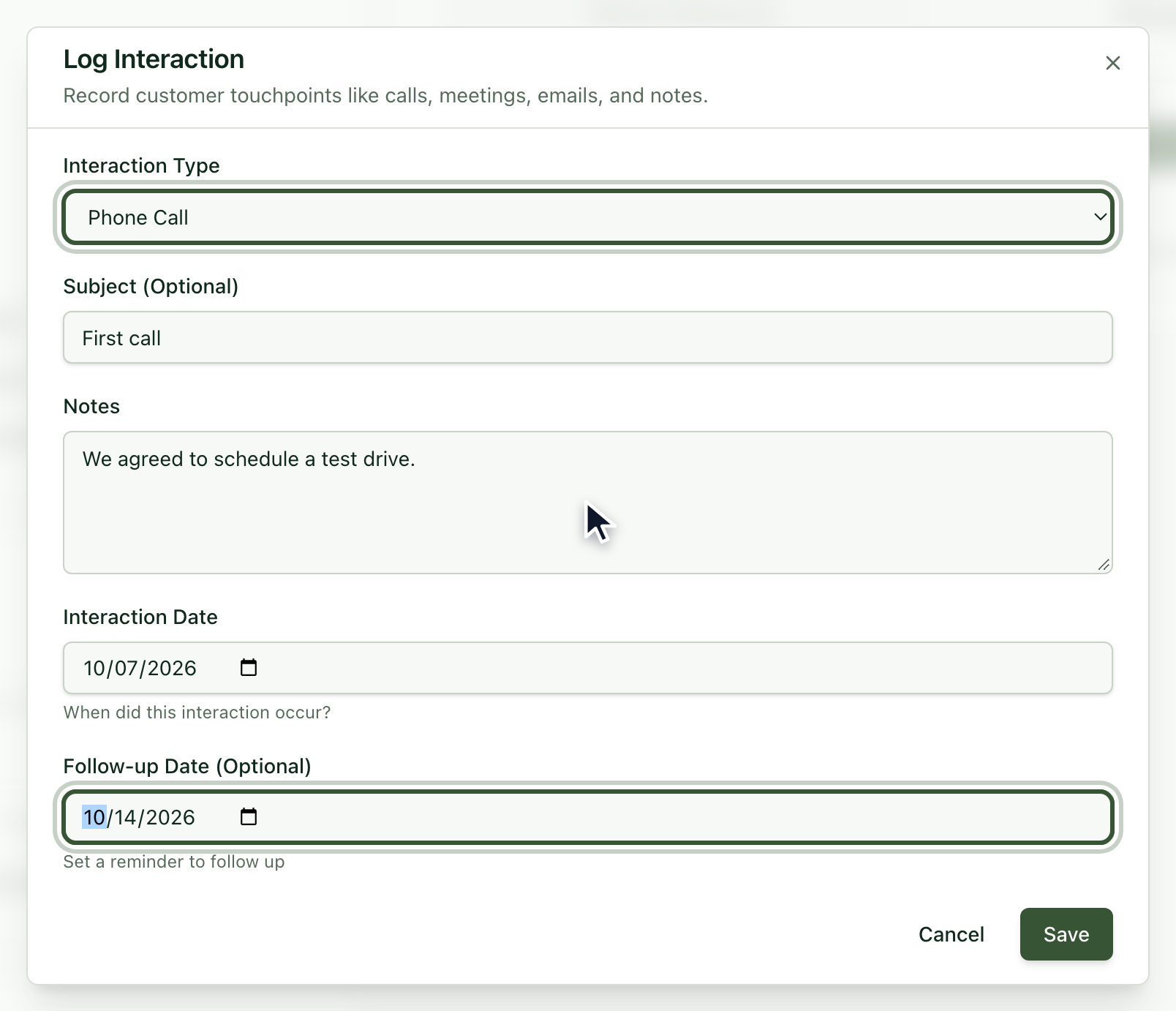
Open the Interactions tab and click Log Interaction.
Choose the Interaction Type, write a Subject and note in Notes what you agreed.
The Follow-up Date is optional, but it helps you remember the next contact.
Click Save.
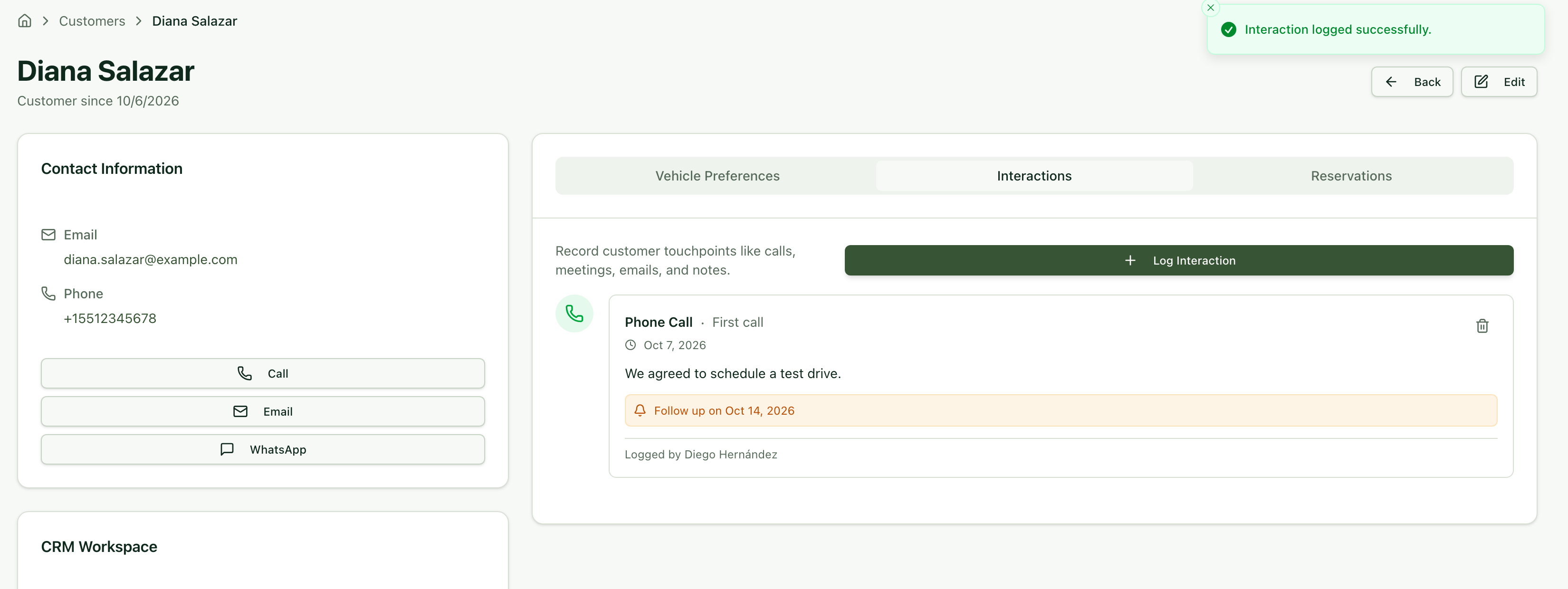
The interaction appears in the file's list, with its follow-up date.
It says a contact method is missing. Enter at least one email or one phone.
What are preferences for? So Centrio can match the customer with the vehicles in the inventory and alert you when one they'd like arrives.
Can I delete an interaction? Yes, with the trash icon on the interaction card.
When your customer is ready, see the article How to create a reservation.
